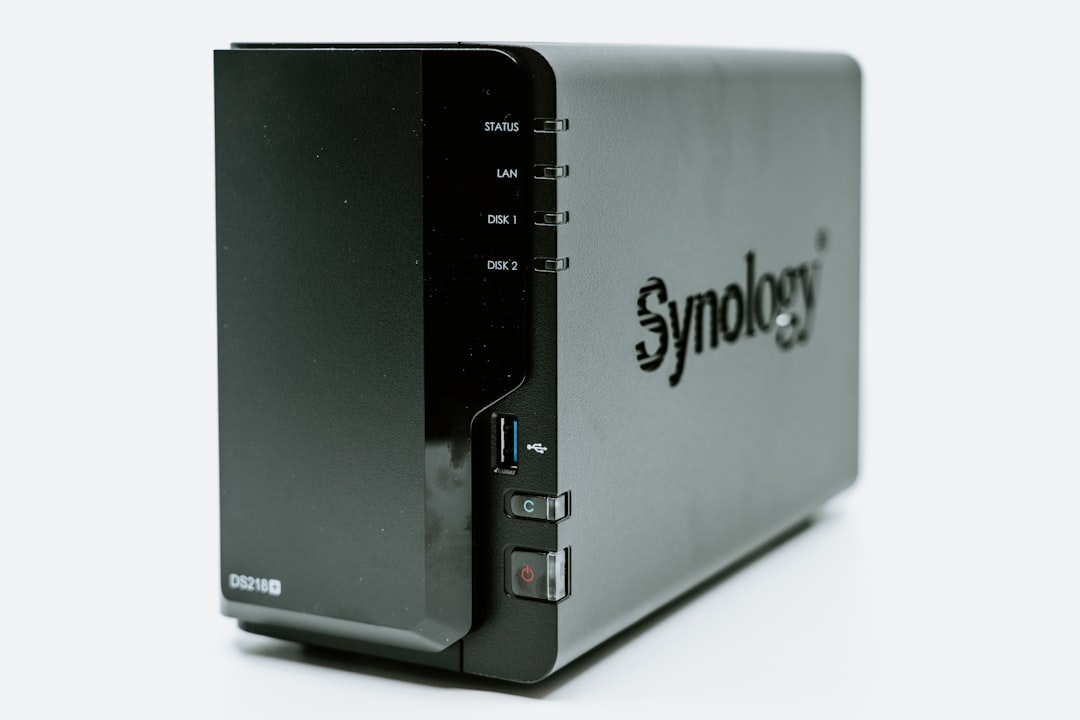
Category: Homelab

Homelab is the category on orthogonal.info dedicated to building, operating, and securing home server infrastructure. From NAS configuration and network segmentation to Docker-based self-hosting and power management, this collection documents the real decisions and trade-offs involved in running production-grade services at home. If you believe your home network deserves the same engineering rigor as a cloud deployment, you are in the right place.

With 16 hands-on posts, Homelab captures lessons learned from building and maintaining a serious home infrastructure — complete with the mistakes, workarounds, and victories that vendor documentation never mentions.

Key Topics Covered

TrueNAS and network-attached storage — Setting up TrueNAS SCALE and TrueNAS CORE, ZFS pool design, snapshot and replication strategies, and SMB/NFS share configuration for mixed-OS environments.
Self-hosting services — Deploying and maintaining services like Nextcloud, Immich, Jellyfin, Home Assistant, Vaultwarden, and Pi-hole with Docker Compose on home servers.
Network segmentation and firewalls — Designing VLAN architectures with OPNsense or pfSense, isolating IoT devices, configuring WireGuard for secure remote access, and implementing DNS-based ad blocking.
Hardware selection and builds — Choosing server hardware, evaluating mini PCs vs. rack-mount servers, NIC and HBA selection, and balancing performance with power consumption and noise levels.
UPS and power management — Configuring NUT (Network UPS Tools) for graceful shutdowns, monitoring battery health, and designing power-resilient home infrastructure.
Backup and disaster recovery — Implementing 3-2-1 backup strategies with ZFS replication, restic, Borg, and off-site cloud targets, plus documented recovery procedures.
Monitoring and automation — Running Uptime Kuma, Grafana, and Prometheus at home, plus scripting automated maintenance tasks with cron, systemd timers, and Ansible.

Who This Content Is For
This category is for homelab enthusiasts, self-hosting advocates, system administrators who tinker at home, and privacy-conscious engineers who want to own their data and services. Whether you are starting with a single Raspberry Pi or running a multi-node server rack, the guides scale to your ambition. The content assumes basic Linux familiarity and a willingness to learn by doing — no enterprise budget required.

What You Will Learn
By exploring the Homelab category, you will learn how to plan, build, and maintain home infrastructure that is reliable, secure, and genuinely useful. You will understand how to design storage pools that protect your data, segment your network to contain IoT risks, deploy self-hosted services that rival their cloud counterparts, and monitor everything with open-source tools. Each guide shares real configurations, hardware recommendations based on actual use, and honest assessments of what works and what does not.

Check out the posts below to start building your ideal homelab.

  • Enterprise Security at Home: Wazuh & Suricata Setup

    Enterprise Security at Home: Wazuh & Suricata Setup

    I run Wazuh and Suricata on my home network. Yes, enterprise SIEM and IDS for a homelab—it’s overkill by any reasonable measure. But after catching an IoT camera phoning home to servers in three different countries, I stopped second-guessing the investment. Here’s why I do it and how you can set it up too.

    Self-Hosted Security

    📌 TL;DR: Learn how to deploy a self-hosted security stack using Wazuh and Suricata to bring enterprise-grade security practices to your homelab.
    🎯 Quick Answer
    Learn how to deploy a self-hosted security stack using Wazuh and Suricata to bring enterprise-grade security practices to your homelab.

    🏠 My setup: Wazuh SIEM + Suricata IDS on TrueNAS SCALE · 64GB ECC RAM · dual 10GbE NICs · OPNsense firewall · 4 VLANs · UPS-protected infrastructure · 30+ monitored Docker containers.

    It started with a simple question: “How secure is my homelab?” I had spent years designing enterprise-grade security systems, but my personal setup was embarrassingly basic. No intrusion detection, no endpoint monitoring—just a firewall and some wishful thinking. It wasn’t until I stumbled across a suspicious spike in network traffic that I realized I needed to practice what I preached.

    Homelabs are often overlooked when it comes to security. After all, they’re not hosting critical business applications, right? But here’s the thing: homelabs are a playground for experimentation, and that experimentation often involves sensitive data, credentials, or even production-like environments. If you’re like me, you want your homelab to be secure, not just functional.

    In this article, we’ll explore how to bring enterprise-grade security practices to your homelab using two powerful tools: Wazuh and Suricata. Wazuh provides endpoint monitoring and log analysis, while Suricata offers network intrusion detection. Together, they form a solid security stack that can help you detect and respond to threats effectively—even in a small-scale environment.

    Why does this matter? Cybersecurity threats are no longer limited to large organizations. Attackers often target smaller, less-secure environments as stepping stones to larger networks. Your homelab could be a weak link if left unprotected. Implementing a security stack like Wazuh and Suricata not only protects your data but also provides hands-on experience with tools used in professional environments.

    Additionally, a secure homelab allows you to experiment freely without worrying about exposing sensitive information. Whether you’re testing new software, running virtual machines, or hosting personal projects, a solid security setup ensures that your environment remains safe from external threats.

    💡 Pro Tip: Treat your homelab as a miniature enterprise. Document your architecture, implement security policies, and regularly review your setup to identify potential vulnerabilities.

    Setting Up Wazuh for Endpoint Monitoring

    Wazuh is an open-source security platform designed for endpoint monitoring, log analysis, and intrusion detection. Think of it as your security operations center in a box. It’s highly scalable, but more importantly, it’s flexible enough to adapt to homelab setups.

    To get started, you’ll need to deploy the Wazuh server and agent. The server collects and analyzes data, while the agent runs on your endpoints to monitor activity. Here’s how to set it up:

    Step-by-Step Guide to Deploying Wazuh

    1. Install the Wazuh server:

    # Install Wazuh repository
    curl -s https://packages.wazuh.com/key/GPG-KEY-WAZUH | sudo apt-key add -
    echo "deb https://packages.wazuh.com/4.x/apt stable main" | sudo tee /etc/apt/sources.list.d/wazuh.list
    
    # Update packages and install Wazuh
    sudo apt update
    sudo apt install wazuh-manager
    

    2. Configure the Wazuh agent on your endpoints:

    # Install Wazuh agent
    sudo apt install wazuh-agent
    
    # Configure agent to connect to the server
    sudo nano /var/ossec/etc/ossec.conf
    # Add your server's IP in the <server-ip> field
    
    # Start the agent
    sudo systemctl start wazuh-agent
    

    3. Set up the Wazuh dashboard for visualization:

    # Install Wazuh dashboard
    sudo apt install wazuh-dashboard
    
    # Access the dashboard at http://<your-server-ip>:5601
    

    Once deployed, you can configure alerts and dashboards to monitor endpoint activity. For example, you can set rules to detect unauthorized access attempts or suspicious file changes. Wazuh also integrates with cloud services like AWS and Azure, making it a versatile tool for hybrid environments.

    For advanced setups, you can enable file integrity monitoring (FIM) to track changes to critical files. This is particularly useful for detecting unauthorized modifications to configuration files or sensitive data.

    💡 Pro Tip: Use TLS to secure communication between the Wazuh server and agents. The default setup is functional but not secure for production-like environments. Refer to the Wazuh documentation for detailed instructions on enabling TLS.

    Common troubleshooting issues include connectivity problems between the server and agents. Ensure that your firewall allows traffic on the required ports (default is 1514 for UDP and 1515 for TCP). If agents fail to register, double-check the server IP and authentication keys in the configuration file.

    ⚠️ What went wrong for me: My first Wazuh deployment ate 12GB of RAM and brought my TrueNAS box to a crawl. I hadn’t tuned the log ingestion rate or disabled unnecessary modules. After switching to a lightweight config—disabling cloud integrations I didn’t need and limiting log retention to 30 days—it runs comfortably on 4GB. Start lean and add monitoring rules as you need them.

    Deploying Suricata for Network Intrusion Detection

    Suricata is an open-source network intrusion detection system (NIDS) that analyzes network traffic for malicious activity. If Wazuh is your eyes on the endpoints, Suricata is your ears on the network. Together, they provide full coverage.

    Here’s how to deploy Suricata in your homelab:

    Installing and Configuring Suricata

    1. Install Suricata:

    # Install Suricata
    sudo apt update
    sudo apt install suricata
    
    # Verify installation
    suricata --version
    

    2. Configure Suricata to monitor your network interface:

    # Edit Suricata configuration
    sudo nano /etc/suricata/suricata.yaml
    
    # Set the network interface to monitor (e.g., eth0)
    - interface: eth0
    

    3. Start Suricata:

    # Start Suricata service
    sudo systemctl start suricata
    

    Once Suricata is running, you can create custom rules to detect specific threats. For example, you might want to flag outbound traffic to known malicious IPs or detect unusual DNS queries. Suricata’s rule syntax is similar to Snort, making it easy to adapt existing rulesets.

    To enhance detection capabilities, consider integrating Suricata with Emerging Threats (ET) rules. These community-maintained rulesets are updated frequently to address new threats. You can download and update ET rules using the following command:

    # Download Emerging Threats rules
    sudo apt install oinkmaster
    sudo oinkmaster -C /etc/oinkmaster.conf -o /etc/suricata/rules
    
    ⚠️ Security Note: Suricata’s default ruleset is a good starting point, but it’s not exhaustive. Regularly update your rules and customize them based on your environment.

    Common pitfalls include misconfigured network interfaces and outdated rulesets. If Suricata fails to start, check the logs for errors related to the YAML configuration file. Ensure that the specified network interface exists and is active.

    Integrating Wazuh and Suricata for a Unified Stack

    Now that you have Wazuh and Suricata set up, it’s time to integrate them into a unified security stack. The goal is to correlate endpoint and network data for more actionable insights.

    Here’s how to integrate the two tools:

    Steps to Integration

    1. Configure Wazuh to ingest Suricata logs:

    # Point Wazuh to Suricata logs
    sudo nano /var/ossec/etc/ossec.conf
    
    # Add a log collection entry for Suricata
    <localfile>
      <location>/var/log/suricata/eve.json</location>
      <log_format>json</log_format>
    </localfile>
    

    2. Visualize Suricata data in the Wazuh dashboard:

    Once logs are ingested, you can create dashboards to visualize network activity alongside endpoint events. This helps you identify correlations, such as a compromised endpoint initiating suspicious network traffic.

    💡 Pro Tip: Use Elasticsearch as a backend for both Wazuh and Suricata to centralize log storage and analysis. This simplifies querying and enhances performance.

    By integrating Wazuh and Suricata, you can achieve a level of visibility that’s hard to match with standalone tools. It’s like having a security team in your homelab, minus the coffee runs.

    Scaling Down Enterprise Security Practices

    Enterprise-grade tools are powerful, but they can be overkill for homelabs. The key is to adapt these tools to your scale without sacrificing security. Here are some tips:

    1. Use lightweight configurations: Disable features you don’t need, like multi-region support or advanced clustering.

    2. Monitor resource usage: Tools like Wazuh and Suricata can be resource-intensive. Ensure your homelab hardware can handle the load.

    3. Automate updates: Security tools are only as good as their latest updates. Use cron jobs or scripts to keep rules and software up to date.

    💡 Pro Tip: Start small and scale up. Begin with basic monitoring and add features as you identify gaps in your security posture.

    Balancing security, cost, and resource constraints is an art. With careful planning, you can achieve a secure homelab without turning it into a full-time job.

    Advanced Monitoring with Threat Intelligence Feeds

    Threat intelligence feeds provide real-time information about emerging threats, malicious IPs, and attack patterns. By integrating these feeds into your Wazuh and Suricata setup, you can enhance your detection capabilities.

    For example, you can use the AbuseIPDB API to block known malicious IPs. Configure a script to fetch the latest threat data and update your Suricata rules automatically:

    # Example script to update Suricata rules with AbuseIPDB data
    curl -G https://api.abuseipdb.com/api/v2/blacklist \
      -d countMinimum=10 \
      -H "Key: YOUR_API_KEY" \
      -H "Accept: application/json" > /etc/suricata/rules/abuseip.rules
    
    # Reload Suricata to apply new rules
    sudo systemctl reload suricata
    

    Integrating threat intelligence feeds ensures that your security stack stays ahead of evolving threats. However, be cautious about overloading your system with too many feeds, as this can increase resource usage.

    💡 Pro Tip: Prioritize high-quality, relevant threat intelligence feeds to avoid false positives and unnecessary complexity.
    🛠️ Recommended Resources:

    Tools and books mentioned in (or relevant to) this article:

    main points

    • Wazuh provides solid endpoint monitoring and log analysis for homelabs.
    • Suricata offers powerful network intrusion detection capabilities.
    • Integrating Wazuh and Suricata creates a unified security stack for better visibility.
    • Adapt enterprise tools to your homelab scale to avoid overcomplication.
    • Regular updates and monitoring are critical to maintaining a secure setup.
    • Advanced features like threat intelligence feeds can further enhance your security posture.

    Have you tried setting up a security stack in your homelab? Share your experiences or questions—I’d love to hear from you. Next week, we’ll explore how to implement Zero Trust principles in small-scale environments. Stay tuned!

    Keep Reading

    Build out your homelab security stack with these guides:

    🛠️ Recommended Gear

    Frequently Asked Questions

    What is Enterprise Security at Home: Wazuh & Suricata Setup about?

    Learn how to deploy a self-hosted security stack using Wazuh and Suricata to bring enterprise-grade security practices to your homelab. Self-Hosted Security It started with a simple question: “How sec

    Who should read this article about Enterprise Security at Home: Wazuh & Suricata Setup?

    Anyone interested in learning about Enterprise Security at Home: Wazuh & Suricata Setup and related topics will find this article useful.

    What are the key takeaways from Enterprise Security at Home: Wazuh & Suricata Setup?

    No intrusion detection, no endpoint monitoring—just a firewall and some wishful thinking. It wasn’t until I stumbled across a suspicious spike in network traffic that I realized I needed to practice w

    References

    1. Wazuh — “Wazuh Documentation”
    2. Suricata — “Suricata Documentation”
    3. TrueNAS — “TrueNAS SCALE Documentation”
    4. OPNsense — “OPNsense Documentation”
    5. OWASP — “OWASP Top Ten IoT Vulnerabilities”
    📦 Disclosure: Some links in this article are affiliate links. If you purchase through these links, I earn a small commission at no extra cost to you. I only recommend products I’ve personally used or thoroughly evaluated. This helps support orthogonal.info and keeps the content free.
  • UPS Battery Backup: Sizing, Setup & NUT on TrueNAS

    UPS Battery Backup: Sizing, Setup & NUT on TrueNAS

    A half-second power flicker during a ZFS scrub can corrupt your pool metadata if the write cache isn’t battery-backed. UPS battery backup isn’t optional for a NAS—it’s infrastructure. Sizing it correctly and wiring it into TrueNAS via NUT turns a catastrophic risk into a graceful shutdown.

    If you’re running a homelab with any kind of persistent storage — especially ZFS on TrueNAS — you need battery backup. Not “eventually.” Now. Here’s what I learned picking one out and setting it up with automatic shutdown via NUT.

    Why Homelabs Need a UPS More Than Desktops Do

    📌 TL;DR: A UPS battery backup is essential for homelabs running persistent storage like TrueNAS to prevent data corruption during power outages. Pure sine wave UPS units are recommended for modern server PSUs with active PFC, ensuring compatibility and reliable operation. The article discusses UPS selection, setup, and integration with NUT for automatic shutdown during outages.
    🎯 Quick Answer: Size a UPS at 1.5× your homelab’s measured wattage, choose pure sine wave output to protect server PSUs, and configure NUT (Network UPS Tools) on TrueNAS to trigger automatic shutdown before battery depletion.

    A desktop PC losing power is annoying. You lose your unsaved work and reboot. A server losing power mid-write can corrupt your filesystem, break a RAID rebuild, or — in the worst case with ZFS — leave your pool in an unrecoverable state.

    I’ve been running TrueNAS on a custom build (I wrote about picking the right drives for it) and the one thing I kept putting off was power protection. Classic homelab mistake: spend $800 on drives, $0 on keeping them alive during outages.

    The math is simple. A decent UPS costs $150-250. A failed ZFS pool can mean rebuilding from backup (hours) or losing data (priceless). The UPS pays for itself the first time your power blips.

    Simulated Sine Wave vs. Pure Sine Wave — It Actually Matters

    Most cheap UPS units output a “simulated” or “stepped” sine wave. For basic electronics, this is fine. But modern server PSUs with active PFC (Power Factor Correction) can behave badly on simulated sine wave — they may refuse to switch to battery, reboot anyway, or run hot.

    The rule: if your server has an active PFC power supply (most ATX PSUs sold after 2020 do), get a pure sine wave UPS. Don’t save $40 on a simulated unit and then wonder why your server still crashes during outages.

    Both units I’d recommend output pure sine wave:

    APC Back-UPS Pro BR1500MS2 — My Pick

    This is what I ended up buying. The APC BR1500MS2 is a 1500VA/900W pure sine wave unit with 10 outlets, USB-A and USB-C charging ports, and — critically — a USB data port for NUT monitoring. (Full disclosure: affiliate link.)

    Why I picked it:

    • Pure sine wave output — no PFC compatibility issues
    • USB HID interface — TrueNAS recognizes it immediately via NUT, no drivers needed
    • 900W actual capacity — enough for my TrueNAS box (draws ~180W), plus my network switch and router
    • LCD display — shows load %, battery %, estimated runtime in real-time
    • User-replaceable battery — when the battery dies in 3-5 years, swap it for ~$40 instead of buying a new UPS

    At ~180W load, I get about 25 minutes of runtime. That’s more than enough for NUT to detect the outage and trigger a clean shutdown.

    CyberPower CP1500PFCLCD — The Alternative

    If APC is out of stock or you prefer CyberPower, the CP1500PFCLCD is the direct competitor. Same 1500VA rating, pure sine wave, 12 outlets, USB HID for NUT. (Affiliate link.)

    The CyberPower is usually $10-20 cheaper than the APC. Functionally, they’re nearly identical for homelab use. I went APC because I’ve had good luck with their battery replacements, but either is a solid choice. Pick whichever is cheaper when you’re shopping.

    Sizing Your UPS: VA, Watts, and Runtime

    UPS capacity is rated in VA (Volt-Amps) and Watts. They’re not the same thing. For homelab purposes, focus on Watts.

    Here’s how to size it:

    1. Measure your actual draw. A Kill A Watt meter costs ~$25 and tells you exactly how many watts your server pulls from the wall. (Affiliate link.) Don’t guess — PSU wattage ratings are maximums, not actual draw.
    2. Add up everything you want on battery. Server + router + switch is typical. Monitors and non-essential stuff go on surge-only outlets.
    3. Target 50-70% load. A 900W UPS running 450W of gear gives you reasonable runtime (~8-12 minutes) and doesn’t stress the battery.

    My setup: TrueNAS box (~180W) + UniFi switch (~15W) + router (~12W) = ~207W total. On a 900W UPS, that’s 23% load, giving me ~25 minutes of runtime. Overkill? Maybe. But I’d rather have headroom than run at 80% and get 4 minutes of battery.

    Setting Up NUT on TrueNAS for Automatic Shutdown

    A UPS without automatic shutdown is just a really expensive power strip with a battery. The whole point is graceful shutdown — your server detects the outage, saves everything, and powers down cleanly before the battery dies.

    TrueNAS has NUT (Network UPS Tools) built in. Here’s the setup:

    1. Connect the USB data cable

    Plug the USB cable from the UPS into your TrueNAS machine. Not a charging cable — the data cable that came with the UPS. Go to System → Advanced → Storage and make sure the USB device shows up.

    2. Configure the UPS service

    In TrueNAS SCALE, go to System Settings → Services → UPS:

    UPS Mode: Master
    Driver: usbhid-ups (auto-detected for APC and CyberPower)
    Port: auto
    Shutdown Mode: UPS reaches low battery
    Shutdown Timer: 30 seconds
    Monitor User: upsmon
    Monitor Password: (set something, you'll need it for NUT clients)

    3. Enable and test

    Start the UPS service, enable auto-start. Then SSH in and check:

    upsc ups@localhost

    You should see battery charge, load, input voltage, and status. If it says OL (online), you’re good. Pull the power cord from the wall briefly — it should switch to OB (on battery) and you’ll see the charge start to drop.

    4. NUT clients for other machines

    If you’re running Docker containers or other servers (like an Ollama inference box), they can connect as NUT clients to the same UPS. On a Linux box:

    apt install nut-client
    # Edit /etc/nut/upsmon.conf:
    MONITOR ups@truenas-ip 1 upsmon yourpassword slave
    SHUTDOWNCMD "/sbin/shutdown -h +0"

    Now when the UPS battery hits critical, TrueNAS shuts down first, then signals clients to do the same.

    Monitoring UPS Health Over Time

    Batteries degrade. A 3-year-old UPS might only give you 8 minutes instead of 25. NUT tracks battery health, but you need to actually look at it.

    I have a cron job that checks upsc ups@localhost battery.charge weekly and logs it. If charge drops below 80% at full load, it’s time for a replacement battery. APC replacement batteries (RBC models) run $30-50 on Amazon and take two minutes to swap.

    If you’re running a monitoring stack (Prometheus + Grafana), there’s a NUT exporter that makes this trivial. But honestly, a cron job and a log file works fine for a homelab.

    What About Rack-Mount UPS?

    If you’ve graduated to a proper server rack, the tower units I mentioned above won’t fit. The APC SMT1500RM2U is the rack-mount equivalent — 2U, 1500VA, pure sine wave, NUT compatible. It’s about 2x the price of the tower version. Only worth it if you actually have a rack.

    For most homelabbers running a Docker or K8s setup on a single tower server, the desktop UPS units are plenty. Don’t buy rack-mount gear for a shelf setup — you’re paying for the form factor, not better protection.

    The Backup Chain: UPS Is Just One Link

    A UPS protects against power loss. It doesn’t protect against drive failure, ransomware, or accidental rm -rf. If you haven’t set up a real backup strategy, I wrote about enterprise-grade backup for homelabs — the 3-2-1 rule still applies, even at home.

    The full resilience stack for a homelab: UPS for power → ZFS for disk redundancy → offsite backups for disaster recovery. Skip any layer and you’re gambling.

    Go buy a UPS. Your data will thank you the next time the power blinks.


    Free market intelligence for traders and builders: Join Alpha Signal on Telegram — daily macro, sector, and signal analysis, free.

    References

    1. APC by Schneider Electric — “How to Choose a UPS”
    2. TrueNAS Documentation — “Configuring Network UPS Tools (NUT)”
    3. CyberPower Systems — “What is Pure Sine Wave Output and Why Does It Matter?”
    4. NUT (Network UPS Tools) — “NUT User Manual”
    5. OpenZFS — “ZFS Best Practices Guide”

    Frequently Asked Questions

    Why is a UPS important for TrueNAS or homelabs?

    A UPS prevents power loss during outages, which can corrupt filesystems, disrupt RAID rebuilds, or cause irreversible damage to ZFS pools. It ensures data integrity and system reliability.

    What is the difference between simulated sine wave and pure sine wave UPS units?

    Simulated sine wave UPS units may cause issues with modern server PSUs that have active PFC, such as failing to switch to battery or overheating. Pure sine wave units are compatible and reliable for such setups.

    What features should I look for in a UPS for TrueNAS?

    Key features include pure sine wave output, sufficient wattage for your devices, USB HID interface for NUT integration, and user-replaceable batteries for long-term cost efficiency.

    How does NUT help with UPS integration on TrueNAS?

    NUT (Network UPS Tools) allows TrueNAS to monitor the UPS status and trigger a clean shutdown during power outages, preventing data loss or corruption.

  • Best Drives for TrueNAS 2026: HDDs, SSDs & My Setup

    Best Drives for TrueNAS 2026: HDDs, SSDs & My Setup

    SMART warnings are the canary you ignore until a drive dies mid-rebuild. Choosing the right drives for TrueNAS in 2026 means navigating the HDD-vs-SSD transition, understanding CMR vs SMR write penalties, and accepting that consumer drives in a ZFS mirror are a calculated risk.

    That rebuild forced me to actually research what I was putting in my NAS instead of just grabbing whatever was on sale. Turns out, picking the right drives for ZFS matters more than most people realize — and the wrong choice can cost you data or performance.

    Here’s what I learned, what I’m running now, and what I’d buy if I were building from scratch today.

    CMR vs. SMR: This Actually Matters for ZFS

    📌 TL;DR: Last month I lost a drive in my TrueNAS mirror. WD Red, three years old, SMART warnings I’d been ignoring for two weeks. The rebuild took 14 hours on spinning rust, and the whole time I was thinking: if the second drive goes, that’s 8TB of media and backups gone.
    🎯 Quick Answer: For TrueNAS in 2026, use CMR HDDs (not SMR) for bulk storage—Seagate Exos X20 or WD Ultrastar are top picks. Add a mirrored SSD SLOG for sync writes and an L2ARC SSD for read caching on frequently accessed datasets.

    Before anything else — check if your drive uses CMR (Conventional Magnetic Recording) or SMR (Shingled Magnetic Recording). ZFS and SMR don’t get along. SMR drives use overlapping write tracks to squeeze in more capacity, which means random writes are painfully slow. During a resilver (ZFS’s version of a rebuild), an SMR drive can take 3-4x longer than CMR.

    WD got caught shipping SMR drives labeled as NAS drives back in 2020 (the WD Red debacle). They’ve since split the line: WD Red Plus = CMR, plain WD Red = SMR. Don’t buy the plain WD Red for a NAS. I made this mistake once. Never again.

    Seagate’s IronWolf line is all CMR. Toshiba N300 — also CMR. If you’re looking at used enterprise drives (which I’ll get to), they’re all CMR.

    The Drives I’d Actually Buy Today

    For Bulk Storage: WD Red Plus 8TB

    The WD Red Plus 8TB (WD80EFPX) is what I’m running right now. 5640 RPM, CMR, 256MB cache. It’s not the fastest drive, but it runs cool and quiet — important when your NAS sits in a closet six feet from your bedroom.

    Price per TB on the 8TB sits around $15-17 at time of writing. The sweet spot for capacity vs. cost. Going to 12TB or 16TB drops the per-TB price slightly, but the failure risk per drive goes up — a single 16TB drive failing is a lot more data at risk during rebuild than an 8TB.

    I run these in a mirror (RAID1 equivalent in ZFS). Two drives, same data on both. Simple, reliable, and rebuild time is reasonable. Full disclosure: affiliate link.

    If You Prefer Seagate: IronWolf 8TB

    The Seagate IronWolf 8TB (ST8000VN004) is the other solid choice. 7200 RPM, CMR, 256MB cache. Faster spindle speed means slightly better sequential performance, but also more heat and noise.

    Seagate includes their IronWolf Health Management software, which hooks into most NAS operating systems including TrueNAS. It gives you better drive health telemetry than standard SMART. Whether that’s worth the slightly higher price depends on how paranoid you are about early failure detection. (I’m very paranoid, but I still went WD — old habits.)

    Both drives have a 3-year warranty. The IronWolf Pro bumps that to 5 years and adds rotational vibration sensors (matters more in 8+ bay enclosures). For a 4-bay homelab NAS, the standard IronWolf is enough. Full disclosure: affiliate link.

    Budget Option: Used Enterprise Drives

    Here’s my hot take: refurbished enterprise drives are underrated for homelabs. An HGST Ultrastar HC320 8TB can be found for $60-80 on eBay — roughly half the price of new consumer NAS drives. These were built for 24/7 operation in data centers. They’re louder (full 7200 RPM, no acoustic management), but they’re tanks.

    The catch: no warranty, unknown hours, and you’re gambling on remaining lifespan. I run one pool with used enterprise drives and another with new WD Reds. The enterprise drives have been fine for two years. But I also keep backups, because I’m not an idiot.

    SSDs in TrueNAS: SLOG, L2ARC, and When They’re Worth It

    ZFS has two SSD acceleration features that confuse a lot of people: SLOG (write cache) and L2ARC (read cache). Let me save you some research time.

    SLOG (Separate Log Device)

    SLOG moves the ZFS Intent Log to a dedicated SSD. This only helps if you’re doing a lot of synchronous writes — think iSCSI targets, NFS with sync enabled, or databases. If you’re mostly streaming media and storing backups, SLOG does nothing for you.

    If you DO need a SLOG, the drive needs high write endurance and a power-loss protection capacitor. The Intel Optane P1600X 118GB is the gold standard here — extremely low latency and designed for exactly this workload. They’re getting harder to find since Intel killed the Optane line, but they pop up on Amazon periodically. Full disclosure: affiliate link.

    Don’t use a consumer NVMe SSD as a SLOG. If it loses power mid-write without a capacitor, you can lose the entire transaction log. That’s your data.

    L2ARC (Level 2 Adaptive Replacement Cache)

    L2ARC is a read cache on SSD that extends your ARC (which lives in RAM). The thing most guides don’t tell you: L2ARC uses about 50-70 bytes of RAM per cached block to maintain its index. So adding a 1TB L2ARC SSD might eat 5-10GB of RAM just for the metadata.

    Rule of thumb: if you have less than 64GB of RAM, L2ARC probably hurts more than it helps. Your RAM IS your cache in ZFS — spend money on more RAM before adding an L2ARC SSD. I learned this the hard way on a 32GB system where L2ARC actually slowed things down.

    If you do have the RAM headroom and want L2ARC, any decent NVMe drive works. I’d grab a Samsung 990 EVO 1TB — good endurance, solid random read performance, and the price has come down a lot. Full disclosure: affiliate link.

    What My Actual Setup Looks Like

    For context, I run TrueNAS Scale on an older Xeon workstation with 64GB ECC RAM. Here’s the drive layout:

    Pool: tank (main storage)
      Mirror: 2x WD Red Plus 8TB (WD80EFPX)
      
    Pool: fast (VMs and containers) 
      Mirror: 2x Samsung 870 EVO 1TB SATA SSD
    
    No SLOG (my workloads are async)
    No L2ARC (64GB RAM handles my working set)

    Total usable: ~8TB spinning + ~1TB SSD. The SSD pool runs my Docker containers and any VM images. Everything else — media, backups, time machine targets — lives on the spinning rust pool.

    This separation matters. ZFS performs best when pools have consistent drive types. Mixing SSDs and HDDs in the same vdev is asking for trouble (the pool performs at the speed of the slowest drive).

    ECC RAM: Not Optional, Fight Me

    While we’re talking about TrueNAS hardware — get ECC RAM. Yes, TrueNAS will run without it. No, that doesn’t mean you should.

    ZFS checksums every block, which means it can detect corruption. But if your RAM flips a bit (which non-ECC RAM does more often than you’d think), ZFS might write that corrupted data to disk AND update the checksum to match. Now you have silent data corruption that ZFS thinks is fine. With ECC, the memory controller catches and corrects single-bit errors before they hit disk.

    Used DDR4 ECC UDIMMs are cheap. A 32GB kit runs $40-60 on eBay. There’s no excuse not to use it if your board supports it. If you’re building a new system, look at Xeon E-series or AMD platforms that support ECC.

    How to Check What You Already Have

    Already running TrueNAS? Here’s how to check your drive health before something fails:

    # List all drives with model and serial
    smartctl --scan | while read dev rest; do
      echo "=== $dev ==="
      smartctl -i "$dev" | grep -E "Model|Serial|Capacity"
      smartctl -A "$dev" | grep -E "Reallocated|Current_Pending|Power_On"
    done
    
    # Quick ZFS pool health check
    zpool status -v

    Watch for Reallocated_Sector_Ct above zero and Current_Pending_Sector above zero. Those are your early warning signs. If both are climbing, start shopping for a replacement drive now — don’t wait for the failure like I did.

    The Short Version

    If you’re building a TrueNAS box in 2026:

    • Bulk storage: WD Red Plus or Seagate IronWolf. CMR only. 8TB is the sweet spot for price per TB.
    • SLOG: Only if you need sync writes. Intel Optane if you can find one. Otherwise skip it.
    • L2ARC: Only if you have 64GB+ RAM to spare. Any NVMe SSD works.
    • RAM: ECC or go home. At least 1GB per TB of storage, 32GB minimum.
    • Budget move: Used enterprise HDDs + new SSDs for VM pool. Loud but reliable.

    Don’t overthink it. Get CMR drives, get ECC RAM, keep backups. Everything else is optimization.

    If you found this useful, check out my guides on self-hosting Ollama on your homelab, backup and recovery for homelabs, and setting up Wazuh and Suricata for home security monitoring.


    Join https://t.me/alphasignal822 for free market intelligence.

    References

    1. Western Digital — “WD Red NAS Hard Drives”
    2. Seagate — “IronWolf NAS Drives”
    3. TrueNAS Documentation — “Choosing Hard Drives for TrueNAS”
    4. ServeTheHome — “WD Red SMR vs CMR Drives: Avoiding NAS Drive Pitfalls”
    5. Backblaze — “Hard Drive Reliability Stats”

    Frequently Asked Questions

    What is Best Drives for TrueNAS 2026: HDDs, SSDs & My Setup about?

    Last month I lost a drive in my TrueNAS mirror. WD Red, three years old, SMART warnings I’d been ignoring for two weeks.

    Who should read this article about Best Drives for TrueNAS 2026: HDDs, SSDs & My Setup?

    Anyone interested in learning about Best Drives for TrueNAS 2026: HDDs, SSDs & My Setup and related topics will find this article useful.

    What are the key takeaways from Best Drives for TrueNAS 2026: HDDs, SSDs & My Setup?

    The rebuild took 14 hours on spinning rust, and the whole time I was thinking: if the second drive goes, that’s 8TB of media and backups gone. That rebuild forced me to actually research what I was pu

  • Self-Host Ollama: Local LLM Inference on Your Homelab

    Self-Host Ollama: Local LLM Inference on Your Homelab

    The $300/Month Problem

    📌 TL;DR: The $300/Month Problem I hit my OpenAI API billing dashboard last month and stared at $312.47. That’s what three months of prototyping a RAG pipeline cost me — and most of those tokens were wasted on testing prompts that didn’t work.
    🎯 Quick Answer: Self-hosting Ollama on a homelab with a used GPU can save over $300/month compared to OpenAI API costs. Run models like Llama 3 and Mistral locally with full data privacy and no per-token fees.

    I hit my OpenAI API billing dashboard last month and stared at $312.47. That’s what three months of prototyping a RAG pipeline cost me — and most of those tokens were wasted on testing prompts that didn’t work.

    Meanwhile, my TrueNAS box sat in the closet pulling 85 watts, running Docker containers I hadn’t touched in weeks. That’s when I started looking at Ollama — a dead-simple way to run open-source LLMs locally. No API keys, no rate limits, no surprise invoices.

    Three weeks in, I’ve moved about 80% of my development-time inference off the cloud. Here’s exactly how I set it up, what hardware actually matters, and the real performance numbers nobody talks about.

    Why Ollama Over vLLM, LocalAI, or text-generation-webui

    I tried all four. Here’s why I stuck with Ollama:

    vLLM is built for production throughput — batched inference, PagedAttention, the works. It’s also a pain to configure if you just want to ask a model a question. Setup took me 45 minutes and required building from source to get GPU support working on my machine.

    LocalAI supports more model formats (GGUF, GPTQ, AWQ) and has an OpenAI-compatible API out of the box. But the documentation is scattered, and I hit three different bugs in the Whisper integration before giving up.

    text-generation-webui (oobabooga) is great if you want a chat UI. But I needed an API endpoint I could hit from scripts and other services, and the API felt bolted on.

    Ollama won because: one binary, one command to pull a model, instant OpenAI-compatible API on port 11434. I had Llama 3.1 8B answering prompts in under 2 minutes from a cold start. That matters when you’re trying to build things, not babysit infrastructure.

    Hardware: What Actually Moves the Needle

    I’m running Ollama on a Mac Mini M2 with 16GB unified memory. Here’s what I learned about hardware that actually affects performance:

    Memory is everything. LLMs need to fit entirely in RAM (or VRAM) to run at usable speeds. A 7B parameter model in Q4_K_M quantization needs about 4.5GB. A 13B model needs ~8GB. A 70B model needs ~40GB. If the model doesn’t fit, it pages to disk and you’re looking at 0.5 tokens/second — basically unusable.

    GPU matters less than you think for models under 13B. Apple Silicon’s unified memory architecture means the M1/M2/M3 chips run these models surprisingly well — I get 35-42 tokens/second on Llama 3.1 8B with my M2. A dedicated NVIDIA GPU is faster (an RTX 3090 with 24GB VRAM will push 70+ tok/s on the same model), but the Mac Mini uses 15 watts doing it versus 350+ watts for the 3090.

    CPU-only is viable for small models. On a 4-core Intel box with 32GB RAM, I was getting 8-12 tokens/second on 7B models. Not great for chat, but perfectly fine for batch processing, embeddings, or code review pipelines where latency doesn’t matter.

    If you’re building a homelab inference box from scratch, here’s what I’d buy today:

    • Budget ($400-600): A used Mac Mini M2 with 16GB RAM runs 7B-13B models at very usable speeds. Power draw is laughable — 15-25 watts under inference load.
    • Mid-range ($800-1200): A Mac Mini M4 with 32GB lets you run 30B models and keeps two smaller models hot in memory. The M4 with 32GB unified memory is the sweet spot for most homelab setups.
    • GPU path ($500-900): If you already have a Linux box, grab a used RTX 3090 24GB — they’ve dropped to $600-800 and the 24GB VRAM handles 13B models at 70+ tok/s. Just make sure your PSU can handle the 350W draw.

    The Setup: 5 Minutes, Not Kidding

    On macOS or Linux:

    curl -fsSL https://ollama.com/install.sh | sh
    ollama serve &
    ollama pull llama3.1:8b

    That’s it. The model downloads (~4.7GB for the Q4_K_M quantized 8B), and you’ve got an API running on localhost:11434.

    Test it:

    curl http://localhost:11434/api/generate -d '{
      "model": "llama3.1:8b",
      "prompt": "Explain TCP three-way handshake in two sentences.",
      "stream": false
    }'

    For Docker (which is what I use on TrueNAS):

    docker run -d \
      --name ollama \
      -v ollama_data:/root/.ollama \
      -p 11434:11434 \
      --restart unless-stopped \
      ollama/ollama:latest

    Then pull your model into the running container:

    docker exec ollama ollama pull llama3.1:8b

    Real Benchmarks: What I Actually Measured

    I ran each model 10 times with the same prompt (“Write a Python function to merge two sorted lists with O(n) complexity, with docstring and type hints”) and averaged the results. Mac Mini M2, 16GB, nothing else running:

    Model Size (Q4_K_M) Tokens/sec Time to first token RAM used
    Llama 3.1 8B 4.7GB 38.2 0.4s 5.1GB
    Mistral 7B v0.3 4.1GB 41.7 0.3s 4.6GB
    CodeLlama 13B 7.4GB 22.1 0.8s 8.2GB
    Llama 3.1 70B (Q2_K) 26GB 3.8 4.2s 28GB*

    *The 70B model technically ran on 16GB with aggressive quantization but spent half its time swapping. I wouldn’t recommend it without 32GB+ RAM.

    For context: GPT-4o through the API typically returns 50-80 tokens/second, but you’re paying per token and dealing with rate limits. 38 tokens/second from a local 8B model is fast enough that you barely notice the difference when coding.

    Making It Useful: The OpenAI-Compatible API

    This is the part that made Ollama actually practical for me. It exposes an OpenAI-compatible endpoint at /v1/chat/completions, which means you can point any tool that uses the OpenAI SDK at your local instance by just changing the base URL:

    from openai import OpenAI
    
    client = OpenAI(
        base_url="http://192.168.0.43:11434/v1",
        api_key="not-needed"  # Ollama doesn't require auth
    )
    
    response = client.chat.completions.create(
        model="llama3.1:8b",
        messages=[{"role": "user", "content": "Review this PR diff..."}]
    )
    print(response.choices[0].message.content)

    I use this for:

    • Automated code review — a git hook sends diffs to the local model before I push
    • Log analysis — pipe structured logs through a prompt that flags anomalies
    • Documentation generation — point it at a module and get decent first-draft docstrings
    • Embedding generationollama pull nomic-embed-text gives you a solid embedding model for RAG without paying per-token

    None of these need GPT-4 quality. A well-prompted 8B model handles them at 90%+ accuracy, and the cost is literally zero per request.

    Gotchas I Hit (So You Don’t Have To)

    Memory pressure kills everything. When Ollama loads a model, it stays in memory until another model evicts it or you restart the service. If you’re running other containers on the same box, set OLLAMA_MAX_LOADED_MODELS=1 to prevent two 8GB models from eating all your RAM and triggering the OOM killer.

    Network binding matters. By default Ollama only listens on 127.0.0.1:11434. If you want other machines on your LAN to use it (which is the whole point of a homelab setup), set OLLAMA_HOST=0.0.0.0. But don’t expose this to the internet — there’s no auth layer. Put it behind a reverse proxy with basic auth or Tailscale if you need remote access.

    Quantization matters more than model size. A 13B model at Q4_K_M often beats a 7B at Q8. The sweet spot for most use cases is Q4_K_M — it’s roughly 4 bits per weight, which keeps quality surprisingly close to full precision while cutting memory by 4x.

    Context length eats memory fast. The default context window is 2048 tokens. Bumping it to 8192 with ollama run llama3.1 --ctx-size 8192 roughly doubles memory usage. Plan accordingly.

    When to Stay on the Cloud

    I still use GPT-4o and Claude for anything requiring deep reasoning, long context, or multi-step planning. Local 8B models are not good at complex architectural analysis or debugging subtle race conditions. They’re excellent at well-scoped, repetitive tasks with clear instructions.

    The split I’ve landed on: cloud APIs for thinking, local models for doing. My API bill dropped from $312/month to about $45.

    What I’d Do Next

    If your homelab already runs Docker, adding Ollama takes 5 minutes and costs nothing. Start with llama3.1:8b for general tasks and nomic-embed-text for embeddings. If you find yourself using it daily (you will), consider dedicated hardware — a Mac Mini or a used GPU that stays on 24/7.

    The models are improving fast. Llama 3.1 8B today is better than Llama 2 70B was a year ago. By the time you read this, there’s probably something even better on Ollama’s model library. Pull it and try it — that’s the beauty of running your own inference server.

    Related Reading

    Full disclosure: Hardware links above are affiliate links.


    📡 Want daily market intelligence with the same no-BS approach? Join Alpha Signal on Telegram for free daily signals and analysis.

    References

    1. Ollama — “Ollama Documentation”
    2. GitHub — “LocalAI: OpenAI-Compatible API for Local Models”
    3. GitHub — “vLLM: A High-Throughput and Memory-Efficient Inference and Serving Library for LLMs”
    4. TrueNAS — “TrueNAS Documentation Hub”
    5. Docker — “Docker Official Documentation”

    Frequently Asked Questions

    What is Self-Host Ollama: Local LLM Inference on Your Homelab about?

    The $300/Month Problem I hit my OpenAI API billing dashboard last month and stared at $312.47. That’s what three months of prototyping a RAG pipeline cost me — and most of those tokens were wasted on

    Who should read this article about Self-Host Ollama: Local LLM Inference on Your Homelab?

    Anyone interested in learning about Self-Host Ollama: Local LLM Inference on Your Homelab and related topics will find this article useful.

    What are the key takeaways from Self-Host Ollama: Local LLM Inference on Your Homelab?

    Meanwhile, my TrueNAS box sat in the closet pulling 85 watts, running Docker containers I hadn’t touched in weeks. That’s when I started looking at Ollama — a dead-simple way to run open-source LLMs l

  • Backup & Recovery: Enterprise Security for Homelabs

    Backup & Recovery: Enterprise Security for Homelabs

    Learn how to apply enterprise-grade backup and disaster recovery practices to secure your homelab and protect critical data from unexpected failures.

    Why Backup and Disaster Recovery Matter for Homelabs

    📌 TL;DR: Learn how to apply enterprise-grade backup and disaster recovery practices to secure your homelab and protect critical data from unexpected failures. Why Backup and Disaster Recovery Matter for Homelabs I’ll admit it: I used to think backups were overkill for homelabs.
    Quick Answer: Implement the 3-2-1 backup rule in your homelab: three copies of data, on two different media types, with one offsite. Use TrueNAS snapshots for local recovery, restic or Borg for encrypted offsite backups, and test your restores quarterly.

    I’ll admit it: I used to think backups were overkill for homelabs. After all, it’s just a personal setup, right? That mindset lasted until the day my RAID array failed spectacularly, taking years of configuration files, virtual machine snapshots, and personal projects with it. It was a painful lesson in how fragile even the most carefully built systems can be.

    Homelabs are often treated as playgrounds for experimentation, but they frequently house critical data—whether it’s family photos, important documents, or the infrastructure powering your self-hosted services. The risks of data loss are very real. Hardware failures, ransomware attacks, accidental deletions, or even natural disasters can leave you scrambling to recover what you’ve lost.

    Disaster recovery isn’t just about backups; it’s about ensuring continuity. A solid disaster recovery plan minimizes downtime, preserves data integrity, and gives you peace of mind. If you’re like me, you’ve probably spent hours perfecting your homelab setup. Why risk losing it all when enterprise-grade practices can be scaled down for home use?

    Another critical reason to prioritize backups is the increasing prevalence of ransomware attacks. Even for homelab users, ransomware can encrypt your data and demand payment for decryption keys. Without proper backups, you may find yourself at the mercy of attackers. Also, consider the time and effort you’ve invested in configuring your homelab. Losing that work due to a failure or oversight can be devastating, especially if you rely on your setup for learning, development, or even hosting services for family and friends.

    Think of backups as an insurance policy. You hope you’ll never need them, but when disaster strikes, they’re invaluable. Whether it’s a failed hard drive, a corrupted database, or an accidental deletion, having a reliable backup can mean the difference between a minor inconvenience and a catastrophic loss.

    💡 Pro Tip: Start small. Even a basic external hard drive for local backups is better than no backup at all. You can always expand your strategy as your homelab grows.

    Troubleshooting Common Issues

    One common issue is underestimating the time required to restore data. If your backups are stored on slow media or in the cloud, recovery could take hours or even days. Test your recovery process to ensure it meets your needs. Another issue is incomplete backups—always verify that all critical data is included in your backup plan.

    Enterprise Practices: Scaling Down for Home Use

    In the enterprise world, backup strategies are built around the 3-2-1 rule: three copies of your data, stored on two different media, with one copy offsite. This ensures redundancy and protects against localized failures. Immutable backups—snapshots that cannot be altered—are another key practice, especially in combating ransomware.

    For homelabs, these practices can be adapted without breaking the bank. Here’s how:

    • Three copies: Keep your primary data on your main storage, a secondary copy on a local backup device (like an external drive or NAS), and a third copy offsite (cloud storage or a remote server).
    • Two media types: Use a combination of SSDs, HDDs, or tape drives for local backups, and cloud storage for offsite redundancy.
    • Immutable backups: Many backup tools now support immutable snapshots. Enable this feature to protect against accidental or malicious changes.

    Let’s break this down further. For local backups, a simple USB external drive can suffice for smaller setups. However, if you’re running a larger homelab with multiple virtual machines or containers, consider investing in a NAS (Network Attached Storage) device. NAS devices often support RAID configurations, which provide redundancy in case of disk failure.

    For offsite backups, cloud storage services like Backblaze, Wasabi, or even Google Drive are excellent options. These services are relatively inexpensive and provide the added benefit of geographic redundancy. If you’re concerned about privacy, ensure your data is encrypted before uploading it to the cloud.

    # Example: Creating immutable backups with Borg
    borg init --encryption=repokey-blake2 /path/to/repo
    borg create --immutable /path/to/repo::backup-$(date +%Y-%m-%d) /path/to/data
    
    💡 Pro Tip: Use cloud storage providers that offer free egress for backups. This can save you significant costs if you ever need to restore large amounts of data.

    Troubleshooting Common Issues

    One challenge with offsite backups is bandwidth. Uploading large datasets can take days on a slow internet connection. To mitigate this, prioritize critical data and upload it first. You can also use tools like rsync or rclone to perform incremental backups, which only upload changes.

    Choosing the Right Backup Tools and Storage Solutions

    When it comes to backup software, the options can be overwhelming. For homelabs, simplicity and reliability should be your top priorities. Here’s a quick comparison of popular tools:

    • Veeam: Enterprise-grade backup software with a free version for personal use. Great for virtual machines and complex setups.
    • Borg: A lightweight, open-source backup tool with excellent deduplication and encryption features.
    • Restic: Another open-source option, known for its simplicity and support for multiple storage backends.

    As for storage solutions, you’ll want to balance capacity, speed, and cost. NAS devices like Synology or QNAP are popular for homelabs, offering RAID configurations and easy integration with backup software. External drives are a budget-friendly option but lack redundancy. Cloud storage, while recurring in cost, provides unmatched offsite protection.

    For those with more advanced needs, consider setting up a dedicated backup server. Tools like Proxmox Backup Server or TrueNAS can turn an old PC into a powerful backup appliance. These solutions often include features like deduplication, compression, and snapshot management, making them ideal for homelab enthusiasts.

    # Example: Setting up Restic with Google Drive
    export RESTIC_REPOSITORY=rclone:remote:backup
    export RESTIC_PASSWORD=yourpassword
    restic init
    restic backup /path/to/data
    
    ⚠️ Security Note: Avoid relying solely on cloud storage for backups. Always encrypt your data before uploading to prevent unauthorized access.

    Troubleshooting Common Issues

    One common issue is compatibility between backup tools and storage solutions. For example, some tools may not natively support certain cloud providers. In such cases, using a middleware like rclone can bridge the gap. Also, always test your backups to ensure they’re restorable. A corrupted backup is as bad as no backup at all.

    Automating Backup and Recovery Processes

    Manual backups are a recipe for disaster. Trust me, you’ll forget to run them when life gets busy. Automation ensures consistency and reduces the risk of human error. Most backup tools allow you to schedule recurring backups, so set it and forget it.

    Here’s an example of automating backups with Restic:

    # Initialize a Restic repository
    restic init --repo /path/to/backup --password-file /path/to/password
    
    # Automate daily backups using cron
    0 2 * * * restic backup /path/to/data --repo /path/to/backup --password-file /path/to/password --verbose
    

    Testing recovery is just as important as creating backups. Simulate failure scenarios to ensure your disaster recovery plan works as expected. Restore a backup to a separate environment and verify its integrity. If you can’t recover your data reliably, your backups are useless.

    Another aspect of automation is monitoring. Tools like Zabbix or Grafana can be configured to alert you if a backup fails. This proactive approach ensures you’re aware of issues before they become critical.

    💡 Pro Tip: Document your recovery steps and keep them accessible. In a real disaster, you won’t want to waste time figuring out what to do.

    Troubleshooting Common Issues

    One common pitfall is failing to account for changes in your environment. If you add new directories or services to your homelab, update your backup scripts accordingly. Another issue is storage exhaustion—automated backups can quickly fill up your storage if old backups aren’t pruned. Use retention policies to manage this.

    Security Best Practices for Backup Systems

    Backups are only as secure as the systems protecting them. Neglecting security can turn your backups into a liability. Here’s how to keep them safe:

    • Encryption: Always encrypt your backups, both at rest and in transit. Tools like Restic and Borg have built-in encryption features.
    • Access control: Limit access to your backup systems. Use strong authentication methods, such as SSH keys or multi-factor authentication.
    • Network isolation: If possible, isolate your backup systems from the rest of your network to reduce attack surfaces.

    Also, monitor your backup systems for unauthorized access or anomalies. Logging and alerting can help you catch issues before they escalate.

    Another important consideration is physical security. If you’re using external drives or a NAS, ensure they’re stored in a safe location. For cloud backups, verify that your provider complies with security standards and offers resilient access controls.

    ⚠️ Security Note: Avoid storing encryption keys alongside your backups. If an attacker gains access, they’ll have everything they need to decrypt your data.

    Troubleshooting Common Issues

    One common issue is losing encryption keys or passwords. Without them, your backups are effectively useless. Store keys securely, such as in a password manager. Another issue is misconfigured access controls, which can expose your backups to unauthorized users. Regularly audit permissions to ensure they’re correct.

    Testing Your Disaster Recovery Plan

    Creating backups is only half the battle. If you don’t test your disaster recovery plan, you won’t know if it works until it’s too late. Regular testing ensures that your backups are functional and that you can recover your data quickly and efficiently.

    Start by identifying the critical systems and data you need to recover. Then, simulate a failure scenario. For example, if you’re backing up a virtual machine, try restoring it to a new host. If you’re backing up files, restore them to a different directory and verify their integrity.

    Document the time it takes to complete the recovery process. This information is critical for setting realistic expectations and identifying bottlenecks. If recovery takes too long, consider optimizing your backup strategy or investing in faster storage solutions.

    💡 Pro Tip: Schedule regular recovery drills, just like fire drills. This keeps your skills sharp and ensures your plan is up to date.

    Troubleshooting Common Issues

    One common issue is discovering that your backups are incomplete or corrupted. To prevent this, regularly verify your backups using tools like Restic’s `check` command. Another issue is failing to account for dependencies. For example, restoring a database backup without its associated application files may render it unusable. Always test your recovery process end-to-end.

    🛠️ Recommended Resources:

    Tools and books mentioned in (or relevant to) this article:

    Quick Summary

    • Follow the 3-2-1 rule for redundancy and offsite protection.
    • Choose backup tools and storage solutions that fit your homelab’s needs and budget.
    • Automate backups and test recovery scenarios regularly.
    • Encrypt backups and secure access to your backup systems.
    • Document your disaster recovery plan for quick action during emergencies.
    • Regularly test your disaster recovery plan to ensure it works as expected.

    Have a homelab backup horror story or a tip to share? I’d love to hear it—drop a comment or reach out on Twitter. Next week, we’ll explore how to secure your NAS against ransomware attacks. Stay tuned!

    Get Weekly Security & DevOps Insights

    Join 500+ engineers getting actionable tutorials on Kubernetes security, homelab builds, and trading automation. No spam, unsubscribe anytime.

    Subscribe Free →

    Delivered every Tuesday. Read by engineers at Google, AWS, and startups.

    Frequently Asked Questions

    What is Backup & Recovery: Enterprise Security for Homelabs about?

    Learn how to apply enterprise-grade backup and disaster recovery practices to secure your homelab and protect critical data from unexpected failures. Why Backup and Disaster Recovery Matter for Homela

    Who should read this article about Backup & Recovery: Enterprise Security for Homelabs?

    Anyone interested in learning about Backup & Recovery: Enterprise Security for Homelabs and related topics will find this article useful.

    What are the key takeaways from Backup & Recovery: Enterprise Security for Homelabs?

    After all, it’s just a personal setup, right? That mindset lasted until the day my RAID array failed spectacularly, taking years of configuration files, virtual machine snapshots, and personal project

    Related Reading

    A solid backup strategy is only one layer of homelab resilience. Make sure your hardware survives long enough to back up in the first place — read our guide on UPS battery backup sizing and NUT automatic shutdown on TrueNAS. And if you want to detect threats before they touch your backups, check out setting up Wazuh and Suricata for enterprise-grade intrusion detection at home.

    References

    1. NIST — “Guide to Data Backup and Recovery”
    2. OWASP — “OWASP Top Ten Risks Related to Backup and Recovery”
    3. GitHub — “Restic: Fast, secure, and efficient backup program”
    4. Kubernetes — “Backup and Restore of Kubernetes Clusters”
    5. Docker — “Backing Up and Restoring Docker Volumes”
    📋 Disclosure: Some links are affiliate links. If you purchase through these links, I earn a small commission at no extra cost to you. I only recommend products I’ve personally used or thoroughly evaluated. This helps support orthogonal.info and keeps the content free.

  • Secure Remote Access for Your Homelab

    Secure Remote Access for Your Homelab

    I manage my homelab remotely every day—30+ Docker containers on TrueNAS SCALE, accessed from coffee shops, airports, and hotel Wi-Fi. After finding brute-force attempts in my logs within hours of opening SSH to the internet, I locked everything down. Here’s exactly how I secure remote access now.

    Introduction to Secure Remote Access

    📌 TL;DR: Learn how to adapt enterprise-grade security practices for safe and efficient remote access to your homelab, ensuring strong protection against modern threats. Introduction to Secure Remote Access Picture this: You’ve spent weeks meticulously setting up your homelab.
    🎯 Quick Answer: Secure remote homelab access using WireGuard VPN with mTLS, OPNsense firewall rules, and Crowdsec intrusion prevention. This setup safely manages 30+ Docker containers remotely while blocking unauthorized access at multiple layers.

    🏠 My setup: TrueNAS SCALE · 64GB ECC RAM · dual 10GbE NICs · WireGuard VPN on OPNsense · Authelia for SSO · all services behind reverse proxy with TLS.

    Picture this: You’ve spent weeks meticulously setting up your homelab. Virtual machines are humming, your Kubernetes cluster is running smoothly, and you’ve finally configured that self-hosted media server you’ve been dreaming about. Then, you decide to access it remotely while traveling, only to realize your setup is wide open to the internet. A few days later, you notice strange activity on your server logs—someone has brute-forced their way in. The dream has turned into a nightmare.

    Remote access is a cornerstone of homelab setups. Whether you’re managing virtual machines, hosting services, or experimenting with new technologies, the ability to securely access your resources from anywhere is invaluable. However, unsecured remote access can leave your homelab vulnerable to attacks, ranging from brute force attempts to more sophisticated exploits.

    we’ll explore how you can scale down enterprise-grade security practices to protect your homelab. The goal is to strike a balance between strong security and practical usability, ensuring your setup is safe without becoming a chore to manage.

    Homelabs are often a playground for tech enthusiasts, but they can also serve as critical infrastructure for personal or small business projects. This makes securing remote access even more important. Attackers often target low-hanging fruit, and an unsecured homelab can quickly become a victim of ransomware, cryptojacking, or data theft.

    By implementing the strategies outlined you’ll not only protect your homelab but also gain valuable experience in cybersecurity practices that can be applied to larger-scale environments. Whether you’re a beginner or an experienced sysadmin, there’s something here for everyone.

    💡 Pro Tip: Always start with a security audit of your homelab. Identify services exposed to the internet and prioritize securing those first.

    Key Principles of Enterprise Security

    Before diving into the technical details, let’s talk about the foundational principles of enterprise security and how they apply to homelabs. These practices might sound intimidating, but they’re surprisingly adaptable to smaller-scale environments.

    Zero Trust Architecture

    Zero Trust is a security model that assumes no user or device is trustworthy by default, even if they’re inside your network. Every access request is verified, and permissions are granted based on strict policies. For homelabs, this means implementing controls like authentication, authorization, and network segmentation to ensure only trusted users and devices can access your resources.

    For example, you can use VLANs (Virtual LANs) to segment your network into isolated zones. This prevents devices in one zone from accessing resources in another zone unless explicitly allowed. Combine this with strict firewall rules to enforce access policies.

    Another practical application of Zero Trust is to use role-based access control (RBAC). Assign specific permissions to users based on their roles. For instance, your media server might only be accessible to family members, while your Kubernetes cluster is restricted to your personal devices.

    Multi-Factor Authentication (MFA)

    MFA is a simple yet powerful way to secure remote access. By requiring a second form of verification—like a one-time code from an app or hardware token—you add an additional layer of security that makes it significantly harder for attackers to gain access, even if they manage to steal your password.

    Consider using apps like Google Authenticator or Authy for MFA. For homelabs, you can integrate MFA with services like SSH, VPNs, or web applications using tools like Authelia or Duo. These tools are lightweight and easy to configure for personal use.

    Hardware-based MFA, such as YubiKeys, offers even greater security. These devices generate one-time codes or act as physical keys that must be present to authenticate. They’re particularly useful for securing critical services like SSH or admin dashboards.

    Encryption and Secure Tunneling

    Encryption ensures that data transmitted between your device and homelab is unreadable to anyone who intercepts it. Secure tunneling protocols like WireGuard or OpenVPN create encrypted channels for remote access, protecting your data from prying eyes.

    For example, WireGuard is known for its simplicity and performance. It uses modern cryptographic algorithms to establish secure connections quickly. Here’s a sample configuration for a WireGuard client:

    # WireGuard client configuration
    [Interface]
    PrivateKey = <client-private-key>
    Address = 10.0.0.2/24
    
    [Peer]
    PublicKey = <server-public-key>
    Endpoint = your-homelab-ip:51820
    AllowedIPs = 0.0.0.0/0
    

    By using encryption and secure tunneling, you can safely access your homelab even on public Wi-Fi networks.

    💡 Pro Tip: Always use strong encryption algorithms like AES-256 or ChaCha20 for secure communications. Avoid outdated protocols like PPTP.
    ⚠️ What went wrong for me: I once left an SSH port exposed with password auth “just for testing.” Within 6 hours, my Wazuh dashboard lit up with thousands of brute-force attempts from IPs across three continents. I immediately switched to key-only auth and moved SSH behind my WireGuard VPN. Now nothing is directly exposed to the internet—every service goes through the tunnel.

    Practical Patterns for Homelab Security

    Now that we’ve covered the principles, let’s get into practical implementations. These are tried-and-true methods that can significantly improve the security of your homelab without requiring enterprise-level budgets or infrastructure.

    Using VPNs for Secure Access

    A VPN (Virtual Private Network) allows you to securely connect to your homelab as if you were on the local network. Tools like WireGuard are lightweight, fast, and easy to set up. Here’s a basic WireGuard configuration:

    # Install WireGuard
    sudo apt update && sudo apt install wireguard
    
    # Generate keys
    wg genkey | tee privatekey | wg pubkey > publickey
    
    # Configure the server
    sudo nano /etc/wireguard/wg0.conf
    
    # Example configuration
    [Interface]
    PrivateKey = <your-private-key>
    Address = 10.0.0.1/24
    ListenPort = 51820
    
    [Peer]
    PublicKey = <client-public-key>
    AllowedIPs = 10.0.0.2/32
    

    Once configured, you can connect securely to your homelab from anywhere.

    VPNs are particularly useful for accessing services that don’t natively support encryption or authentication. By routing all traffic through a secure tunnel, you can protect even legacy applications.

    💡 Pro Tip: Use dynamic DNS services like DuckDNS or No-IP to maintain access to your homelab even if your public IP changes.

    Setting Up SSH with Public Key Authentication

    SSH is a staple for remote access, but using passwords is a recipe for disaster. Public key authentication is far more secure. Here’s how you can set it up:

    # Generate SSH keys on your local machine
    ssh-keygen -t rsa -b 4096 -C "[email protected]"
    
    # Copy the public key to your homelab server
    ssh-copy-id user@homelab-ip
    
    # Disable password authentication for SSH
    sudo nano /etc/ssh/sshd_config
    
    # Update the configuration
    PasswordAuthentication no
    

    Public key authentication eliminates the risk of brute force attacks on SSH passwords. Also, you can use tools like Fail2Ban to block IPs after repeated failed login attempts.

    💡 Pro Tip: Use SSH jump hosts to securely access devices behind your homelab firewall without exposing them directly to the internet.

    Implementing Firewall Rules and Network Segmentation

    Firewalls and network segmentation are essential for limiting access to your homelab. Tools like UFW (Uncomplicated Firewall) make it easy to set up basic rules:

    # Install UFW
    sudo apt update && sudo apt install ufw
    
    # Allow SSH and VPN traffic
    sudo ufw allow 22/tcp
    sudo ufw allow 51820/udp
    
    # Deny all other traffic by default
    sudo ufw default deny incoming
    sudo ufw default allow outgoing
    
    # Enable the firewall
    sudo ufw enable
    

    Network segmentation can be achieved using VLANs or separate subnets. For example, you can isolate your IoT devices from your critical infrastructure to reduce the risk of lateral movement in case of a breach.

    Tools and Technologies for Homelab Security

    There’s no shortage of tools to help secure your homelab. Here are some of the most effective and homelab-friendly options:

    Open-Source VPN Solutions

    WireGuard and OpenVPN are excellent choices for creating secure tunnels to your homelab. WireGuard is particularly lightweight and fast, making it ideal for resource-constrained environments.

    Reverse Proxies for Secure Web Access

    Reverse proxies like Traefik and NGINX can serve as a gateway to your web services, providing SSL termination, authentication, and access control. For example, Traefik can automatically issue and renew Let’s Encrypt certificates:

    # Traefik configuration
    entryPoints:
     web:
     address: ":80"
     websecure:
     address: ":443"
    
    certificatesResolvers:
     letsencrypt:
     acme:
     email: [email protected]
     storage: acme.json
     httpChallenge:
     entryPoint: web
    

    Reverse proxies also allow you to expose multiple services on a single IP address, simplifying access management.

    Homelab-Friendly MFA Tools

    For MFA, tools like Authelia or Duo can integrate with your homelab services, adding an extra layer of security. Pair them with password managers like Bitwarden to manage credentials securely.

    Monitoring and Continuous Improvement

    Security isn’t a one-and-done deal—it’s an ongoing process. Regular monitoring and updates are critical to maintaining a secure homelab.

    Logging and Monitoring

    Set up logging for all remote access activity. Tools like Fail2Ban can analyze logs and block suspicious IPs automatically. Pair this with centralized logging solutions like ELK Stack or Grafana for better visibility.

    Monitoring tools can also alert you to unusual activity, such as repeated login attempts or unexpected traffic patterns. This allows you to respond quickly to potential threats.

    Regular Updates

    Outdated software is a common entry point for attackers. Make it a habit to update your operating system, applications, and firmware regularly. Automate updates where possible to reduce manual effort.

    ⚠️ Warning: Never skip updates for critical software like VPNs or SSH servers. Vulnerabilities in these tools can expose your entire homelab.

    Advanced Security Techniques

    For those looking to take their homelab security to the next level, here are some advanced techniques to consider:

    Intrusion Detection Systems (IDS)

    IDS tools like Snort or Suricata can monitor network traffic for suspicious activity. These tools are particularly useful for detecting and responding to attacks in real time.

    Hardware Security Modules (HSM)

    HSMs are physical devices that securely store cryptographic keys. While typically used in enterprise environments, affordable options like YubiHSM can be used in homelabs to protect sensitive keys.

    💡 Pro Tip: Combine IDS with firewall rules to automatically block malicious traffic based on detected patterns.
    🛠️ Recommended Resources:

    Tools and books mentioned in (or relevant to) this article:

    Conclusion and Next Steps

    Start with WireGuard. It took me 30 minutes to set up on OPNsense and it immediately eliminated my entire external attack surface. Every service—SSH, web UIs, dashboards—now lives behind the VPN tunnel. Add key-only SSH auth and Authelia for MFA, and you’ve got enterprise-grade remote access for your homelab in an afternoon.

    Here’s what to remember:

    • Always use VPNs or SSH with public key authentication for remote access.
    • Implement MFA wherever possible to add an extra layer of security.
    • Regularly monitor logs and update software to stay ahead of vulnerabilities.
    • Use tools like reverse proxies and firewalls to control access to your services.

    Start small—secure one service at a time, and iterate on your setup as you learn. Security is a journey, not a destination.

    Have questions or tips about securing homelabs? Drop a comment or reach out to me on Twitter. Next week, we’ll explore advanced network segmentation techniques—because a segmented network is a secure network.

    Get Weekly Security & DevOps Insights

    Join 500+ engineers getting actionable tutorials on Kubernetes security, homelab builds, and trading automation. No spam, unsubscribe anytime.

    Subscribe Free →

    Delivered every Tuesday. Read by engineers at Google, AWS, and startups.

    Frequently Asked Questions

    What is Secure Remote Access for Your Homelab about?

    Learn how to adapt enterprise-grade security practices for safe and efficient remote access to your homelab, ensuring strong protection against modern threats. Introduction to Secure Remote Access Pic

    Who should read this article about Secure Remote Access for Your Homelab?

    Anyone interested in learning about Secure Remote Access for Your Homelab and related topics will find this article useful.

    What are the key takeaways from Secure Remote Access for Your Homelab?

    Virtual machines are humming, your Kubernetes cluster is running smoothly, and you’ve finally configured that self-hosted media server you’ve been dreaming about. Then, you decide to access it remotel

    📋 Disclosure: Some links are affiliate links. If you purchase through these links, I earn a small commission at no extra cost to you. I only recommend products I’ve personally used or thoroughly evaluated. This helps support orthogonal.info and keeps the content free.

    References

  • Home Network Segmentation with OPNsense: A Complete Guide

    Home Network Segmentation with OPNsense: A Complete Guide

    My homelab has 30+ Docker containers, 4 VLANs, and over a dozen IoT devices—all managed through OPNsense on a Protectli vault. Before I set up segmentation, my smart plugs could ping my NAS and my guest Wi-Fi clients could see every service on my network. This guide walks you through exactly how I segmented everything, step by step.

    A notable example of this occurred during the Mirai botnet attacks, where unsecured IoT devices like cameras and routers were exploited to launch massive DDoS attacks. The lack of network segmentation allowed attackers to easily hijack multiple devices in the same network, amplifying the scale and damage of the attack.

    By implementing network segmentation, you can isolate devices into separate virtual networks, reducing the risk of lateral movement and containing potential breaches. we’ll show you how to achieve effective network segmentation using OPNsense, a powerful and open-source firewall solution. Whether you’re a tech enthusiast or a beginner, this step-by-step guide will help you create a safer, more secure home network.

    What You’ll Learn

    📌 TL;DR: In today’s connected world, the average home network is packed with devices ranging from laptops and smartphones to smart TVs, security cameras, and IoT gadgets. While convenient, this growing number of devices also introduces potential security risks.
    🎯 Quick Answer: Segment your home network into at least 4 VLANs using OPNsense: trusted devices, IoT, servers/Docker, and guest. Apply firewall rules blocking IoT-to-LAN traffic while allowing LAN-to-IoT management. This isolates compromised IoT devices from reaching sensitive systems even on the same physical network.

    🏠 My setup: TrueNAS SCALE · 64GB ECC RAM · dual 10GbE NICs · OPNsense on a Protectli vault · 4 VLANs (IoT, Trusted, DMZ, Guest) · 30+ Docker containers · 60TB+ ZFS storage.

    • Understanding VLANs and their role in network segmentation
    • Planning your home network layout for maximum efficiency and security
    • Setting up OPNsense for VLANs and segmentation
    • Configuring firewall rules to protect your network
    • Setting up DHCP and DNS for segmented networks
    • Configuring your network switch for VLANs
    • Testing and monitoring your segmented network
    • Troubleshooting common issues

    By the end of this guide, you’ll have a well-segmented home network that enhances both security and performance.

    Understanding VLANs

    Virtual Local Area Networks (VLANs) are a powerful way to segment your home network without requiring additional physical hardware. A VLAN operates at Layer 2 of the OSI model, using switches to create isolated network segments. Devices on different VLANs cannot communicate with each other unless a router or Layer 3 switch is used to route the traffic. This segmentation improves network security and efficiency by keeping traffic isolated and reducing unnecessary broadcast traffic.

    When traffic travels across a network, it can either be tagged or untagged. Tagged traffic includes a VLAN ID (identifier) in its Ethernet frame, following the 802.1Q standard. This tagging allows switches to know which VLAN the traffic belongs to. Untagged traffic, on the other hand, does not include a VLAN tag and is typically assigned to the default VLAN of the port it enters. Each switch port has a Port VLAN ID (PVID) that determines the VLAN for untagged incoming traffic.

    Switch ports can operate in two main modes: access and trunk. Access ports are configured for a single VLAN and are commonly used to connect end devices like PCs or printers. Trunk ports, on the other hand, carry traffic for multiple VLANs and are used to connect switches or other devices that need to understand VLAN tags. Trunk ports use 802.1Q tagging to identify VLANs for traffic passing through them.

    Using VLANs is often better than physically separating network segments because it reduces hardware costs and simplifies network management. Instead of buying separate switches for each network segment, you can configure VLANs on a single switch. This flexibility is particularly useful in home networks where you want to isolate devices (like IoT gadgets or guest devices) but don’t have room or budget for extra hardware.

    Example of VLAN Traffic Flow

    The following is a simple representation of VLAN traffic flow:

    Device/Port VLAN Traffic Type Description
    PC1 (Access Port) 10 Untagged PC1 is part of VLAN 10 and sends traffic untagged.
    Switch (Trunk Port) 10, 20 Tagged The trunk port carries tagged traffic for VLANs 10 and 20.
    PC2 (Access Port) 20 Untagged PC2 is part of VLAN 20 and sends traffic untagged.

    In this example, PC1 and PC2 are on separate VLANs. They cannot communicate with each other unless a router is configured to route traffic between VLANs.

    ### Planning Your VLAN Layout

    When setting up a home network, organizing your devices into VLANs (Virtual Local Area Networks) can significantly enhance security, performance, and manageability. VLANs allow you to segregate traffic based on device type or role, ensuring that sensitive devices are isolated while minimizing unnecessary communication between devices. Below is a recommended VLAN layout for a typical home network, along with the associated IP ranges and purposes.

    #### Recommended VLAN Layout

    1. **VLAN 10: Management** (10.0.10.0/24)
    This VLAN is dedicated to managing your network infrastructure, such as your router (e.g., OPNsense), managed switches, and wireless access points (APs). Isolating management traffic ensures that only authorized devices can access critical network components.

    2. **VLAN 20: Trusted** (10.0.20.0/24)
    This is the primary VLAN for everyday devices such as workstations, laptops, and smartphones. These devices are considered trusted, and this VLAN has full internet access. Inter-VLAN communication with other VLANs should be carefully restricted.

    3. **VLAN 30: IoT** (10.0.30.0/24)
    IoT devices, such as smart home assistants, cameras, and thermostats, often have weaker security and should be isolated from the rest of the network. Restrict inter-VLAN access for these devices, while allowing them to access the internet as needed.

    4. **VLAN 40: Guest** (10.0.40.0/24)
    This VLAN is for visitors who need temporary WiFi access. It should provide internet connectivity while being completely isolated from the rest of your network to protect your devices and data.

    5. **VLAN 50: Lab/DMZ** (10.0.50.0/24)
    If you experiment with homelab servers, development environments, or host services exposed to the internet, this VLAN is ideal. Isolating these devices minimizes the risk of security breaches affecting other parts of the network.

    Below is an HTML table for a quick reference of the VLAN layout:

    “`html

    VLAN ID Name Subnet Purpose Internet Access Inter-VLAN Access
    10 Management 10.0.10.0/24 OPNsense, switches, APs Limited Restricted
    20 Trusted 10.0.20.0/24 Workstations, laptops, phones Full Restricted
    30 IoT 10.0.30.0/24 Smart home devices, cameras Full Restricted
    40 Guest 10.0.40.0/24 Visitor WiFi Full None
    50 Lab/DMZ 10.0.50.0/24 Homelab servers, exposed services Full Restricted

    “`


    1. Creating VLAN Interfaces

    To start, navigate to Interfaces > Other Types > VLAN. This is where you will define your VLANs on a parent interface, typically igb0 or em0. Follow these steps:

    1. Click Add (+) to create a new VLAN.
    2. In the Parent Interface dropdown, select the parent interface (e.g., igb0).
    3. Enter the VLAN tag (e.g., 10 for VLAN 10).
    4. Provide a Description (e.g., “VLAN10_Office”).
    5. Click Save.

    Repeat the above steps for each VLAN you want to create.

    
    Parent Interface: igb0 
    VLAN Tag: 10 
    Description: VLAN10_Office
    

    2. Assigning VLAN Interfaces

    Once VLANs are created, they must be assigned as interfaces. Go to Interfaces > Assignments and follow these steps:

    1. In the Available Network Ports dropdown, locate the VLAN you created (e.g., igb0_vlan10).
    2. Click Add.
    3. Rename the interface (e.g., “VLAN10_Office”) for easier identification.
    4. Click Save.

    3. Configuring Interface IP Addresses

    After assigning VLAN interfaces, configure IP addresses for each VLAN. Each VLAN will act as its gateway for connected devices. Follow these steps:

    1. Go to Interfaces > [Your VLAN Interface] (e.g., VLAN10_Office).
    2. Check the Enable Interface box.
    3. Set the IPv4 Configuration Type to Static IPv4.
    4. Scroll down to the Static IPv4 Configuration section and enter the IP address (e.g., 192.168.10.1/24).
    5. Click Save, then click Apply Changes.
    
    IPv4 Address: 192.168.10.1 
    Subnet Mask: 24
    

    4. Setting Up DHCP Servers per VLAN

    Each VLAN can have its own DHCP server to assign IP addresses to devices. Go to Services > DHCPv4 > [Your VLAN Interface] and follow these steps:

    1. Check the Enable DHCP Server box.
    2. Define the Range of IP addresses (e.g., 192.168.10.100 to 192.168.10.200).
    3. Set the Gateway to the VLAN IP address (e.g., 192.168.10.1).
    4. Optionally, configure DNS servers, NTP servers, or other advanced options.
    5. Click Save.
    
    Range: 192.168.10.100 - 192.168.10.200 
    Gateway: 192.168.10.1
    

    5. DNS Configuration per VLAN

    To ensure proper name resolution for each VLAN, configure DNS settings. Go to System > Settings > General:

    1. Add DNS servers specific to your VLAN (e.g., 1.1.1.1 and 8.8.8.8).
    2. Ensure the Allow DNS server list to be overridden by DHCP/PPP on WAN box is unchecked, so VLAN-specific DNS settings are maintained.
    3. Go to Services > Unbound DNS > General and enable DNS Resolver.
    4. Under the Advanced section, configure access control lists (ACLs) to allow specific VLAN subnets to query the DNS resolver.
    5. Click Save and Apply Changes.
    
    DNS Servers: 1.1.1.1, 8.8.8.8 
    Access Control: 192.168.10.0/24
    

    By following these steps, you can successfully configure VLANs in OPNsense, ensuring proper traffic segmentation, IP management, and DNS resolution for your network.

    ⚠️ What went wrong for me: When I first set up VLANs, I forgot about mDNS—my Chromecast and AirPlay devices stopped discovering media servers across VLANs. The fix was enabling the Avahi mDNS repeater in OPNsense (Services → Avahi) and allowing mDNS traffic between my Trusted and IoT VLANs. Took two frustrating hours to diagnose, but now it’s effortless.

    Firewall Rules for VLAN Segmentation

    Implementing hardened firewall rules is critical for ensuring security and proper traffic management in a VLAN-segmented network. Below are the recommended inter-VLAN firewall rules for an OPNsense firewall setup, designed to enforce secure communication between VLANs and restrict unauthorized access.

    Inter-VLAN Firewall Rules

    The following rules provide a practical framework for managing traffic between VLANs. These rules follow the principle of least privilege, where access is only granted to specific services or destinations as required. The default action for any inter-VLAN communication is to deny all traffic unless explicitly allowed.

    Order Source Destination Port Action Description
    1 Trusted All VLANs Any Allow Allow management access from Trusted VLAN to all
    2 IoT Internet Any Allow Allow IoT VLAN access to the Internet only
    3 IoT RFC1918 (Private IPs) Any Block Block IoT VLAN from accessing private networks
    4 Guest Internet Any Allow Allow Guest VLAN access to the Internet only, with bandwidth limits
    5 Lab Internet Any Allow Allow Lab VLAN access to the Internet
    6 Lab Trusted Specific Ports Allow Allow Lab VLAN to access specific services on Trusted VLAN
    7 IoT Trusted Any Block Block IoT VLAN from accessing Trusted VLAN
    8 All VLANs Firewall Interface (OPNsense) DNS, NTP Allow Allow DNS and NTP traffic to OPNsense for time sync and name resolution
    9 All VLANs All VLANs Any Block Default deny all inter-VLAN traffic

    OPNsense Firewall Rule Configuration Snippets

    
     # Rule: Allow Trusted to All VLANs
     pass in quick on vlan_trusted from 192.168.10.0/24 to any tag TrustedAccess
    
     # Rule: Allow IoT to Internet (block RFC1918)
     pass in quick on vlan_iot from 192.168.20.0/24 to !192.168.0.0/16 tag IoTInternet
    
     # Rule: Block IoT to Trusted
     block in quick on vlan_iot from 192.168.20.0/24 to 192.168.10.0/24 tag BlockIoTTrusted
    
     # Rule: Allow Guest to Internet
     pass in quick on vlan_guest from 192.168.30.0/24 to any tag GuestInternet
    
     # Rule: Allow Lab to Internet
     pass in quick on vlan_lab from 192.168.40.0/24 to any tag LabInternet
    
     # Rule: Allow Lab to Specific Trusted Services
     pass in quick on vlan_lab proto tcp from 192.168.40.0/24 to 192.168.10.100 port 22 tag LabToTrusted
    
     # Rule: Allow DNS and NTP to Firewall
     pass in quick on any proto { udp, tcp } from any to 192.168.1.1 port { 53, 123 } tag DNSNTPAccess
    
     # Default Deny Rule
     block in log quick on any from any to any tag DefaultDeny
     

    These rules ensure secure VLAN segmentation by only allowing necessary traffic while denying unauthorized communications. Customize the rules for your specific network requirements to maintain best security and functionality.


    Managed Switch Configuration

    Setting up VLANs on a managed switch is essential for implementing network segmentation. Below are the general steps involved:

    • Create VLANs: Access the switch’s management interface, navigate to the VLAN settings, and create the necessary VLANs. Assign each VLAN a unique identifier (e.g., VLAN 10 for “Trusted”, VLAN 20 for “IoT”, VLAN 30 for “Guest”).
    • Configure a Trunk Port: Select a port that will connect to your OPNsense firewall or router and configure it as a trunk port. Ensure this port is set to tag all VLANs to allow traffic for all VLANs to flow to the firewall.
    • Configure Access Ports: Assign each access port to a specific VLAN. Access ports should be untagged for the VLAN they are assigned to, ensuring that devices connected to these ports automatically belong to the appropriate VLAN.

    Here are examples for configuring VLANs on common managed switches:

    • TP-Link: Use the web interface to create VLANs under the “VLAN” menu. Set the trunk port as “Tagged” for all VLANs and assign access ports as “Untagged” for their respective VLANs.
    • Netgear: Navigate to the VLAN configuration menu. Create VLANs and assign ports accordingly, ensuring the trunk port has all VLANs tagged.
    • Ubiquiti: Use the UniFi Controller interface. Under the “Switch Ports” section, assign VLANs to ports and configure the trunk port to tag all VLANs.

    Testing Segmentation

    Once VLANs are configured, it is vital to verify segmentation and functionality. Perform the following tests:

    • Verify DHCP: Connect a device to an access port in each VLAN and ensure it receives an IP address from the correct VLAN’s DHCP range. Test command: ipconfig /renew (Windows) or dhclient (Linux).
    • Ping Tests: Attempt to ping devices between VLANs to ensure segmentation works. For example, from VLAN 20 (IoT), ping a device in VLAN 10 (Trusted). The ping should fail if proper firewall rules block inter-VLAN traffic. Test command: ping [IP Address].
    • nmap Scan: From a device in the IoT VLAN, run an nmap scan targeting the Trusted VLAN. Proper firewall rules should block the scan. Test command: nmap -sP [IP Range].
    • Internet Access: Access the internet from a device in each VLAN to confirm that internet connectivity is functional.
    • DNS Resolution: Test DNS resolution in each VLAN to ensure devices can resolve domain names. Test command: nslookup google.com or dig google.com.

    Monitoring & Maintenance

    Network security and performance require ongoing monitoring and maintenance. Use the following tools and practices:

    • OPNsense Firewall Logs: Regularly review logs to monitor allowed and blocked traffic. This helps identify potential misconfigurations or suspicious activity. Access via the OPNsense GUI: Firewall > Log Files > Live View.
    • Blocked Traffic Alerts: Configure alerts for blocked traffic attempts. This can help detect unauthorized access attempts or misbehaving devices.
    • Intrusion Detection (Suricata): Enable and configure Suricata on OPNsense to monitor for malicious traffic. Regularly review alerts for potential threats. Access via: Services > Intrusion Detection.
    • Regular Rule Reviews: Periodically review firewall rules to ensure they are up to date and aligned with network security policies. Remove outdated or unnecessary rules to minimize attack surfaces.
    • Backup Configuration: Regularly back up switch and OPNsense configurations to ensure quick recovery in case of failure.

    By following these steps, you ensure proper VLAN segmentation, maintain network security, and optimize performance for all connected devices.

    🛠 Recommended Resources:

    Hardware and books for building a segmented home network:

    📋 Disclosure: Some links are affiliate links. If you purchase through these links, I earn a small commission at no extra cost to you. I only recommend products I have personally used or thoroughly evaluated.


    📚 Related Articles

    📬 Get Daily Tech & Market Intelligence

    Join our free Alpha Signal newsletter — AI-powered market insights, security alerts, and homelab tips delivered daily.

    Join Free on Telegram →

    No spam. Unsubscribe anytime. Powered by AI.

    My Advice: Just Start

    Setting up VLANs took me one afternoon, and it’s the single biggest security improvement I’ve made at home. Start with just two VLANs—Trusted and IoT. Move your smart devices to the IoT VLAN, block inter-VLAN traffic, and you’ve already eliminated the biggest risk on your network. Expand to Guest and DMZ VLANs when you’re ready. Don’t let perfect be the enemy of good.

    Get Weekly Security & DevOps Insights

    Join 500+ engineers getting actionable tutorials on Kubernetes security, homelab builds, and trading automation. No spam, unsubscribe anytime.

    Subscribe Free →

    Delivered every Tuesday. Read by engineers at Google, AWS, and startups.

    Frequently Asked Questions

    What is Home Network Segmentation with OPNsense: A Complete Guide about?

    In today’s connected world, the average home network is packed with devices ranging from laptops and smartphones to smart TVs, security cameras, and IoT gadgets. While convenient, this growing number

    Who should read this article about Home Network Segmentation with OPNsense: A Complete Guide?

    Anyone interested in learning about Home Network Segmentation with OPNsense: A Complete Guide and related topics will find this article useful.

    What are the key takeaways from Home Network Segmentation with OPNsense: A Complete Guide?

    Many IoT devices lack strong security, making them easy targets for malicious actors. If a single device is compromised, an unsegmented network can allow attackers to move laterally, gaining access to

  • Set Up Elasticsearch and Kibana on CentOS 7

    Set Up Elasticsearch and Kibana on CentOS 7

    Real-Time Search and Analytics: The Challenge

    📌 TL;DR: Real-Time Search and Analytics: The Challenge Picture this: your team is tasked with implementing a solid real-time search and analytics solution, but time isn’t on your side.
    🎯 Quick Answer: Set up Elasticsearch and Kibana on CentOS 7 by importing the Elastic GPG key, adding the Elastic 7.x yum repo, then running yum install elasticsearch kibana. Configure network.host in elasticsearch.yml and server.host in kibana.yml, then enable both services with systemctl.

    Picture this: your team is tasked with implementing a solid real-time search and analytics solution, but time isn’t on your side. You’ve got a CentOS 7 server at your disposal, and the pressure is mounting to get Elasticsearch and Kibana up and running quickly, securely, and efficiently. I’ve been there countless times, and through trial and error, I’ve learned exactly how to make this process smooth and sustainable. I’ll walk you through every essential step, with no shortcuts and actionable tips to avoid common pitfalls.

    Step 1: Prepare Your System for Elasticsearch

    Before diving into the installation, it’s critical to ensure your CentOS 7 environment is primed for Elasticsearch. Neglecting these prerequisites can lead to frustrating errors down the line. Trust me—spending an extra 10 minutes here will save you hours later. Let’s break this down step by step.

    Networking Essentials

    Networking is the backbone of any distributed system, and Elasticsearch clusters are no exception. To avoid future headaches, it’s important to configure networking properly from the start.

    • Set a static IP address:

      A dynamic IP can cause connectivity issues, especially in a cluster. Configure a static IP by editing the network configuration:

      sudo vi /etc/sysconfig/network-scripts/ifcfg-ens3

      Update the file to include settings for a static IP, then restart the network service:

      sudo systemctl restart network
      Pro Tip: Use ip addr to confirm the IP address has been set correctly.
    • Set a hostname:

      A clear, descriptive hostname helps with cluster management and debugging. Set a hostname like es-node1 using the following command:

      sudo hostnamectl set-hostname es-node1

      Don’t forget to update /etc/hosts to map the hostname to your static IP address.

    Install Prerequisite Packages

    Elasticsearch relies on several packages to function properly. Installing them upfront will ensure a smoother setup process.

    • Install essential utilities: Tools like wget and curl are needed for downloading files and testing connections:

      sudo yum install wget curl vim -y
    • Install Java: Elasticsearch requires Java to run. While Elasticsearch 8.x comes with a bundled JVM, it’s a good idea to have Java installed system-wide for flexibility:

      sudo yum install java-1.8.0-openjdk.x86_64 -y
      Warning: If you decide to use the bundled JVM, avoid setting JAVA_HOME to prevent conflicts.

    Step 2: Install Elasticsearch 8.x on CentOS 7

    Now that your system is ready, it’s time to install Elasticsearch. Version 8.x brings significant improvements, including built-in security features like TLS and authentication. Follow these steps carefully.

    Adding the Elasticsearch Repository

    The first step is to add the official Elasticsearch repository to your system. This ensures you’ll always have access to the latest version.

    1. Import the Elasticsearch GPG key:

      Verify the authenticity of the packages by importing the GPG key:

      sudo rpm --import https://artifacts.elastic.co/GPG-KEY-elasticsearch
    2. Create the repository file:

      Add the Elastic repository by creating a new file:

      sudo vi /etc/yum.repos.d/elasticsearch.repo
      [elasticsearch]
      name=Elasticsearch repository for 8.x packages
      baseurl=https://artifacts.elastic.co/packages/8.x/yum
      gpgcheck=1
      gpgkey=https://artifacts.elastic.co/GPG-KEY-elasticsearch
      enabled=0
      autorefresh=1
      type=rpm-md
      Pro Tip: Set enabled=0 to avoid accidental Elasticsearch updates during a system-wide yum update.

    Installing and Configuring Elasticsearch

    Once the repository is set up, you can proceed with the installation and configuration of Elasticsearch.

    1. Install Elasticsearch:

      Enable the repository and install Elasticsearch:

      sudo yum install --enablerepo=elasticsearch elasticsearch -y
    2. Configure Elasticsearch:

      Open the configuration file and make the following changes:

      sudo vi /etc/elasticsearch/elasticsearch.yml
      node.name: "es-node1"
      cluster.name: "my-cluster"
      network.host: 0.0.0.0
      discovery.seed_hosts: ["127.0.0.1"]
      xpack.security.enabled: true

      This configuration enables a single-node cluster with basic security.

    3. Set JVM heap size:

      Adjust the JVM heap size for Elasticsearch:

      sudo vi /etc/elasticsearch/jvm.options
      -Xms4g
      -Xmx4g
      Pro Tip: Set the heap size to half of your system’s RAM but do not exceed 32GB for best performance.
    4. Start Elasticsearch:

      Enable and start the Elasticsearch service:

      sudo systemctl enable elasticsearch
      sudo systemctl start elasticsearch
    5. Verify the installation:

      Test the Elasticsearch setup by running:

      curl -X GET 'http://localhost:9200'

    Step 3: Install Kibana for Visualization

    Kibana provides a user-friendly interface for interacting with Elasticsearch. It allows you to visualize data, monitor cluster health, and manage security settings.

    Installing Kibana

    Follow these steps to install and configure Kibana on CentOS 7:

    1. Add the Kibana repository:

      sudo vi /etc/yum.repos.d/kibana.repo
      [kibana-8.x]
      name=Kibana repository for 8.x packages
      baseurl=https://artifacts.elastic.co/packages/8.x/yum
      gpgcheck=1
      gpgkey=https://artifacts.elastic.co/GPG-KEY-elasticsearch
      enabled=1
      autorefresh=1
      type=rpm-md
    2. Install Kibana:

      sudo yum install kibana -y
    3. Configure Kibana:

      sudo vi /etc/kibana/kibana.yml
      server.host: "0.0.0.0"
      elasticsearch.hosts: ["http://localhost:9200"]
      xpack.security.enabled: true
    4. Start Kibana:

      sudo systemctl enable kibana
      sudo systemctl start kibana
    5. Access Kibana:

      Visit http://your-server-ip:5601 in your browser and log in using the enrollment token.

    Troubleshooting Common Issues

    Even with a thorough setup, issues can arise. Here are some common problems and their solutions:

    • Elasticsearch won’t start: Check logs via journalctl -u elasticsearch for errors.
    • Kibana cannot connect: Verify the elasticsearch.hosts setting in kibana.yml and ensure Elasticsearch is running.
    • Cluster health is yellow: Add nodes or replicas to improve redundancy.

    Quick Summary

    • Set up proper networking and prerequisites before installation.
    • Use meaningful names for clusters and nodes.
    • Enable Elasticsearch’s built-in security features.
    • Monitor cluster health regularly to address issues proactively.

    By following this guide, you can confidently deploy Elasticsearch and Kibana on CentOS 7. Questions? Drop me a line—Max L.

    🛠 Recommended Resources:

    Tools and books mentioned in (or relevant to) this article:

    📋 Disclosure: Some links are affiliate links. If you purchase through these links, I earn a small commission at no extra cost to you. I only recommend products I have personally used or thoroughly evaluated.


    📚 Related Articles

    📊 Free AI Market Intelligence

    Join Alpha Signal — AI-powered market research delivered daily. Narrative detection, geopolitical risk scoring, sector rotation analysis.

    Join Free on Telegram →

    Pro with stock conviction scores: $5/mo

    Get Weekly Security & DevOps Insights

    Join 500+ engineers getting actionable tutorials on Kubernetes security, homelab builds, and trading automation. No spam, unsubscribe anytime.

    Subscribe Free →

    Delivered every Tuesday. Read by engineers at Google, AWS, and startups.

    Frequently Asked Questions

    What is Set Up Elasticsearch and Kibana on CentOS 7 about?

    Real-Time Search and Analytics: The Challenge Picture this: your team is tasked with implementing a solid real-time search and analytics solution, but time isn’t on your side. You’ve got a CentOS 7 se

    Who should read this article about Set Up Elasticsearch and Kibana on CentOS 7?

    Anyone interested in learning about Set Up Elasticsearch and Kibana on CentOS 7 and related topics will find this article useful.

    What are the key takeaways from Set Up Elasticsearch and Kibana on CentOS 7?

    I’ve been there countless times, and through trial and error, I’ve learned exactly how to make this process smooth and sustainable. I’ll walk you through every essential step, with no shortcuts and ac

    References

  • Expert Guide: Migrating ZVols and Datasets Between ZFS Pools

    Expert Guide: Migrating ZVols and Datasets Between ZFS Pools

    Pro Tip: If you’ve ever faced the challenge of moving ZFS datasets or ZVols, you know it’s more than just a copy-paste job. A single mistake can lead to downtime or data corruption. I’ll walk you through the entire process step-by-step, sharing practical advice from real-world scenarios.

    Why Migrate ZFS Datasets or ZVols?

    📌 TL;DR: Pro Tip: If you’ve ever faced the challenge of moving ZFS datasets or ZVols, you know it’s more than just a copy-paste job. A single mistake can lead to downtime or data corruption. I’ll walk you through the entire process step-by-step, sharing practical advice from real-world scenarios.
    🎯 Quick Answer: Migrate ZFS datasets between pools with: zfs snapshot pool1/dataset@migrate, then zfs send pool1/dataset@migrate | zfs receive pool2/dataset. For ZVols, use the same send/receive pipeline. Add -R for recursive datasets and use -i for incremental sends to minimize downtime.

    Migrating ZVols and datasets between ZFS pools is a high-stakes operation where one wrong flag can silently drop snapshots, break replication chains, or mangle mount points. The safe path uses zfs send | zfs receive with specific options depending on whether you’re moving raw volumes or hierarchical datasets.

    There are many scenarios that might necessitate a ZFS dataset or ZVol migration, such as:

    • Hardware Upgrades: Transitioning to larger, faster drives or upgrading RAID configurations.
    • Storage Consolidation: Combining datasets from multiple pools into a single location for easier management.
    • Disaster Recovery: Moving data to a secondary site or server to ensure business continuity.
    • Resource Optimization: Balancing the storage load across multiple pools to improve performance.
    Warning: ZFS snapshots and transfers do not encrypt data by default. If your data is sensitive, ensure encryption is applied on the target pool or use a secure transport layer like SSH.

    Understanding ZFS Terminology

    Before diving into commands, here’s a quick refresher:

    • ZVol: A block device created within a ZFS pool, often used for virtual machines or iSCSI targets. These are particularly useful for environments where block-level storage is required.
    • Dataset: A filesystem within a ZFS pool used to store files and directories. These are highly flexible and support features like snapshots, compression, and quotas.
    • Pool: A collection of physical storage devices managed by ZFS, serving as the foundation for datasets and ZVols. Pools abstract the underlying hardware, allowing ZFS to provide advanced features like redundancy, caching, and snapshots.

    These components work together, and migrating them involves transferring data from one pool to another, either locally or across systems. The key commands for this process are zfs snapshot, zfs send, and zfs receive.

    Step 1: Preparing for Migration

    1.1 Check Space Availability

    Before initiating a migration, it is critical to ensure that the target pool has enough free space to accommodate the dataset or ZVol being transferred. Running out of space mid-transfer can lead to incomplete migrations and potential data integrity issues. Use the zfs list command to verify sizes:

    # Check source dataset or ZVol size
    zfs list pool1/myVol
    
    # Check available space in the target pool
    zfs list pool2
    Warning: If your source dataset has compression enabled, ensure the target pool supports the same compression algorithm. Otherwise, the transfer may require significantly more space than anticipated.

    1.2 Create Snapshots

    Snapshots are an essential part of ZFS data migration. They create a consistent, point-in-time copy of your data, ensuring that the transfer process does not affect live operations. Always use descriptive naming conventions for your snapshots, such as including the date or purpose of the snapshot.

    # Snapshot for ZVol
    zfs snapshot -r pool1/myVol@migration
    
    # Snapshot for dataset
    zfs snapshot -r pool1/myDataset@migration
    Pro Tip: Use descriptive names for snapshots, such as @migration_20231015, to make them easier to identify later, especially if you’re managing multiple migrations.

    Step 2: Transferring Data

    2.1 Moving ZVols

    Transferring ZVols involves using the zfs send and zfs receive commands. The process streams data from the source pool to the target pool efficiently:

    # Transfer snapshot to target pool
    zfs send pool1/myVol@migration | zfs receive -v pool2/myVol

    Adding the -v flag to zfs receive provides verbose output, enabling you to monitor the progress of the transfer and diagnose any issues that may arise.

    2.2 Moving Datasets

    The procedure for migrating datasets is similar to that for ZVols. For example:

    # Transfer dataset snapshot
    zfs send pool1/myDataset@migration | zfs receive -v pool2/myDataset
    Pro Tip: For network-based transfers, pipe the commands through SSH to ensure secure transmission:
    zfs send pool1/myDataset@migration | ssh user@remotehost zfs receive -v pool2/myDataset

    2.3 Incremental Transfers

    For large datasets or ZVols, incremental transfers are an effective way to minimize downtime. Instead of transferring all the data at once, only changes made since the last snapshot are sent:

    # Initial transfer
    zfs snapshot -r pool1/myDataset@initial
    zfs send pool1/myDataset@initial | zfs receive -v pool2/myDataset
    
    # Incremental transfer
    zfs snapshot -r pool1/myDataset@incremental
    zfs send -i pool1/myDataset@initial pool1/myDataset@incremental | zfs receive -v pool2/myDataset
    Warning: Ensure that all intermediate snapshots in the transfer chain exist on both the source and target pools. Deleting these snapshots can break the chain and make incremental transfers impossible.

    Step 3: Post-Migration Cleanup

    3.1 Verify Data Integrity

    After completing the migration, verify that the data on the target pool matches your expectations. Use zfs list to confirm the presence and size of the migrated datasets or ZVols:

    # Confirm data existence on target pool
    zfs list pool2/myVol
    zfs list pool2/myDataset

    You can also use checksums or file-level comparisons for additional verification.

    3.2 Remove Old Snapshots

    If the snapshots on the source pool are no longer needed, you can delete them to free up space:

    # Delete snapshot
    zfs destroy pool1/myVol@migration
    zfs destroy pool1/myDataset@migration
    Pro Tip: Retain snapshots on the target pool for a few days as a safety net before performing deletions. This ensures you can revert to these snapshots if something goes wrong post-migration.

    Troubleshooting Common Issues

    Transfer Errors

    If zfs send fails, check that the snapshot exists on the source pool:

    # Check snapshots
    zfs list -t snapshot

    Insufficient Space

    If the target pool runs out of space during a transfer, consider enabling compression or freeing up unused storage:

    # Enable compression
    zfs set compression=lz4 pool2

    Slow Transfers

    For sluggish transfers, use mbuffer to optimize the data stream and reduce bottlenecks:

    # Accelerate transfer with mbuffer
    zfs send pool1/myDataset@migration | mbuffer -s 128k | zfs receive pool2/myDataset

    Performance Optimization Tips

    • Parallel Transfers: Break large datasets into smaller pieces and transfer them concurrently to speed up the process.
    • Compression: Use built-in compression with -c in zfs send to reduce the amount of data being transmitted.
    • Monitor Activity: Use tools like zpool iostat or zfs list to track performance and balance disk load during migration.

    Quick Summary

    • Always create snapshots before transferring data to ensure consistency and prevent data loss.
    • Verify available space on the target pool to avoid transfer failures.
    • Use incremental transfers for large datasets to minimize downtime and reduce data transfer volumes.
    • Secure network transfers with SSH or other encryption methods to protect sensitive data.
    • Retain snapshots on the target pool temporarily as a safety net before finalizing the migration.

    Migrating ZFS datasets or ZVols doesn’t have to be daunting. With the right preparation, commands, and tools, you can ensure a smooth, secure process. Have questions or tips to share? Let’s discuss!

    🛠 Recommended Resources:

    Tools and books mentioned in (or relevant to) this article:

    📋 Disclosure: Some links are affiliate links. If you purchase through these links, I earn a small commission at no extra cost to you. I only recommend products I have personally used or thoroughly evaluated.


    📚 Related Articles

    📊 Free AI Market Intelligence

    Join Alpha Signal — AI-powered market research delivered daily. Narrative detection, geopolitical risk scoring, sector rotation analysis.

    Join Free on Telegram →

    Pro with stock conviction scores: $5/mo

    Get Weekly Security & DevOps Insights

    Join 500+ engineers getting actionable tutorials on Kubernetes security, homelab builds, and trading automation. No spam, unsubscribe anytime.

    Subscribe Free →

    Delivered every Tuesday. Read by engineers at Google, AWS, and startups.

    Frequently Asked Questions

    Can I migrate ZFS datasets between pools without downtime?

    For minimal downtime, use incremental sends: take an initial snapshot and send it while the dataset is live, then take a final snapshot, send the incremental difference, and switch over. The downtime window is only as long as the final incremental send takes — typically seconds for small deltas.

    What’s the difference between zfs send -R and zfs send -r?

    The -R (replication) flag sends all snapshots, properties, and descendant datasets/ZVols recursively, preserving the complete hierarchy. The -r flag sends descendant datasets recursively but without the replication metadata. Use -R for full pool migrations to preserve everything.

    How do I verify data integrity after a ZFS migration?

    Run ‘zpool scrub’ on the target pool after migration to verify all checksums. Compare snapshot lists with ‘zfs list -t snapshot’ on both pools. For critical data, compare file checksums using sha256sum on mounted datasets from both source and target.

    Can I migrate encrypted ZFS datasets to another pool?

    Yes, using ‘zfs send –raw’ which sends the encrypted data stream without decrypting it. The target pool receives the data still encrypted with the original key. Without –raw, you’d need to decrypt on send and re-encrypt on receive, which requires loading keys on both sides.

    References

  • Setup k3s on CentOS 7: Easy Tutorial for Beginners

    Setup k3s on CentOS 7: Easy Tutorial for Beginners

    Picture this: you’re tasked with deploying Kubernetes on CentOS 7 in record time. Maybe it’s for a pet project, a lab environment, or even production. You’ve heard of k3s, the lightweight Kubernetes distribution, but you’re unsure where to start. Don’t worry—I’ve been there, and I’m here to help. I’ll walk you through setting up k3s on CentOS 7 step by step. We’ll cover prerequisites, installation, troubleshooting, and even a few pro tips to make your life easier. By the end, you’ll have a solid Kubernetes setup ready to handle your workloads.

    Why Choose k3s for CentOS 7?

    📌 TL;DR: Picture this: you’re tasked with deploying Kubernetes on CentOS 7 in record time. Maybe it’s for a pet project, a lab environment, or even production. You’ve heard of k3s, the lightweight Kubernetes distribution, but you’re unsure where to start.
    🎯 Quick Answer: Install k3s on CentOS 7 with a single command: curl -sfL https://get.k3s.io | sh -. K3s runs a full Kubernetes cluster in under 512MB RAM. Verify with sudo k3s kubectl get nodes. It bundles containerd, CoreDNS, and Traefik by default.

    Kubernetes is a fantastic tool, but its complexity can be daunting, especially for smaller setups. k3s simplifies Kubernetes without sacrificing core functionality. Here’s why k3s is a great choice for CentOS 7:

    • Lightweight: k3s has a smaller footprint compared to full Kubernetes distributions. It removes unnecessary components, making it faster and more efficient.
    • Easy to Install: A single command gets you up and running, eliminating the headache of lengthy installation processes.
    • Built for Edge and IoT: It’s perfect for resource-constrained environments like edge devices, Raspberry Pi setups, or virtual machines with limited resources.
    • Fully CNCF Certified: Despite its simplicity, k3s adheres to Kubernetes standards, ensuring compatibility with Kubernetes-native tools and configurations.
    • Automatic Upgrades: k3s includes a built-in upgrade mechanism, making it easier to keep your cluster updated without manual intervention.

    Whether you’re setting up a development environment or a lightweight production cluster, k3s is the ideal solution for CentOS 7 due to its ease of use and reliability. Now, let’s dive into the setup process.

    Step 1: Preparing Your CentOS 7 System

    Before installing k3s, your CentOS 7 server needs to meet a few prerequisites. Skipping these steps can lead to frustrating errors down the line. Proper preparation ensures a smooth installation and optimizes your cluster’s performance.

    Update Your System

    First, ensure your system is up to date. This keeps packages current and eliminates potential issues caused by outdated dependencies. Run the following commands:

    sudo yum update -y
    sudo yum upgrade -y
    

    After completing the updates, reboot your server to apply any pending changes to the kernel or system libraries:

    sudo reboot
    

    Set a Static IP Address

    For a stable cluster, assign a static IP to your server. This ensures consistent communication between nodes. Edit the network configuration file:

    sudo vi /etc/sysconfig/network-scripts/ifcfg-eth0
    

    Add or modify the following lines:

    BOOTPROTO=none
    IPADDR=192.168.1.100
    NETMASK=255.255.255.0
    GATEWAY=192.168.1.1
    DNS1=8.8.8.8
    

    Save the file and restart the network to apply the changes:

    sudo systemctl restart network
    

    Verify the static IP configuration using:

    ip addr
    

    Disable SELinux

    SELinux can interfere with Kubernetes operations by blocking certain actions. Disable it temporarily with:

    sudo setenforce 0
    

    To disable SELinux permanently, edit the configuration file:

    sudo vi /etc/selinux/config
    

    Change the line SELINUX=enforcing to SELINUX=disabled, then reboot your server for the changes to take effect.

    Optional: Disable the Firewall

    If you’re in a trusted environment, disabling the firewall can simplify setup. Run:

    sudo systemctl disable firewalld --now
    
    Warning: Disabling the firewall is not recommended for production environments. If you keep the firewall enabled, open ports 6443 (Kubernetes API), 10250, and 8472 (Flannel VXLAN) to ensure proper communication.

    Install Required Dependencies

    k3s doesn’t require many dependencies, but ensuring your system has tools like curl and wget installed can avoid potential errors during installation. Use:

    sudo yum install -y curl wget
    

    Step 2: Installing k3s

    With your system prepared, installing k3s is straightforward. Let’s start with the master node.

    Install k3s on the Master Node

    Run the following command to install k3s:

    curl -sfL https://get.k3s.io | K3S_KUBECONFIG_MODE="644" sh -
    
    Pro Tip: The K3S_KUBECONFIG_MODE="644" flag makes the kubeconfig file readable by all users. This is useful for testing but not secure for production.

    By default, k3s sets up a single-node cluster. This is ideal for lightweight setups or testing environments.

    Verify Installation

    Confirm that k3s is running:

    sudo systemctl status k3s
    

    You should see a message indicating that k3s is active and running. Also, check the nodes in your cluster:

    kubectl get nodes
    

    Retrieve the Cluster Token

    To add worker nodes to your cluster, you’ll need the cluster token. Retrieve it using:

    sudo cat /var/lib/rancher/k3s/server/node-token
    

    Note this token—it’ll be required to join worker nodes.

    Install k3s on Worker Nodes

    On each worker node, use the following command, replacing <MASTER_IP> with your master node’s IP and <TOKEN> with the cluster token:

    curl -sfL https://get.k3s.io | \
     K3S_URL="https://<MASTER_IP>:6443" \
     K3S_TOKEN="<TOKEN>" \
     sh -
    

    Verify that the worker node has successfully joined the cluster:

    kubectl get nodes
    

    You should see all nodes listed, including the master and any worker nodes.

    Step 3: Troubleshooting Common Issues

    Even with a simple setup, things can go wrong. Here are some common issues and how to resolve them.

    Firewall or SELinux Blocking Communication

    If worker nodes fail to join the cluster, check that required ports are open and SELinux is disabled. Use telnet to test connectivity to port 6443 on the master node:

    telnet <MASTER_IP> 6443
    

    Node Not Ready

    If a node shows up as NotReady, check the logs for errors:

    sudo journalctl -u k3s
    

    Configuration Issues

    Misconfigured IP addresses or missing prerequisites can cause failures. Double-check your static IP, SELinux settings, and firewall rules for accuracy.

    Step 4: Next Steps

    Congratulations! You now have a functional k3s cluster on CentOS 7. Here are some suggestions for what to do next:

    • Deploy a sample application using kubectl apply -f.
    • Explore Helm charts to deploy popular applications like Nginx, WordPress, or Prometheus.
    • Secure your cluster by enabling authentication and network policies.
    • Monitor the cluster using tools like Prometheus, Grafana, or Lens.
    • Experiment with scaling your cluster by adding more nodes.

    Remember, Kubernetes clusters are dynamic. Always test your setup thoroughly before deploying to production.

    Quick Summary

    • k3s is a lightweight, easy-to-install Kubernetes distribution, ideal for CentOS 7.
    • Prepare your system by updating packages, setting a static IP, and disabling SELinux.
    • Installation is simple, but pay attention to prerequisites and firewall rules.
    • Troubleshooting common issues like node connectivity can save hours of debugging.
    • Explore, test, and secure your cluster to get the most out of k3s.

    I’m Max L, and I believe a well-configured cluster is a thing of beauty. Good luck, and happy hacking!

    🛠 Recommended Resources:

    Tools and books mentioned in (or relevant to) this article:

    📋 Disclosure: Some links are affiliate links. If you purchase through these links, I earn a small commission at no extra cost to you. I only recommend products I have personally used or thoroughly evaluated.


    📚 Related Articles

    📊 Free AI Market Intelligence

    Join Alpha Signal — AI-powered market research delivered daily. Narrative detection, geopolitical risk scoring, sector rotation analysis.

    Join Free on Telegram →

    Pro with stock conviction scores: $5/mo

    Get Weekly Security & DevOps Insights

    Join 500+ engineers getting actionable tutorials on Kubernetes security, homelab builds, and trading automation. No spam, unsubscribe anytime.

    Subscribe Free →

    Delivered every Tuesday. Read by engineers at Google, AWS, and startups.

    Frequently Asked Questions

    What is k3s and how does it differ from standard Kubernetes?

    K3s is a lightweight, certified Kubernetes distribution by Rancher Labs. It packages the entire control plane into a single binary under 100MB, replaces etcd with SQLite by default, and removes legacy and alpha features. It is fully conformant with Kubernetes but optimized for edge, IoT, and resource-constrained environments.

    What are the minimum system requirements for k3s?

    K3s requires as little as 512MB RAM and 1 CPU core for a server node, making it suitable for Raspberry Pi and small VMs. Agent (worker) nodes need even less. Compare this to standard Kubernetes which recommends 2GB RAM and 2 CPU cores minimum.

    How do I install k3s on CentOS 7?

    Run the official install script: curl -sfL https://get.k3s.io | sh -. This installs k3s as a systemd service and starts the server automatically. Access your cluster with the kubeconfig written to /etc/rancher/k3s/k3s.yaml.

    Can k3s run production workloads?

    Yes, k3s is production-ready and used in production by many organizations. For high availability, run multiple server nodes with an external datastore like PostgreSQL or MySQL. It supports all standard Kubernetes features including Helm charts, ingress controllers, and persistent volumes.

    References

Also by us: StartCaaS — AI Company OS · Hype2You — AI Tech Trends