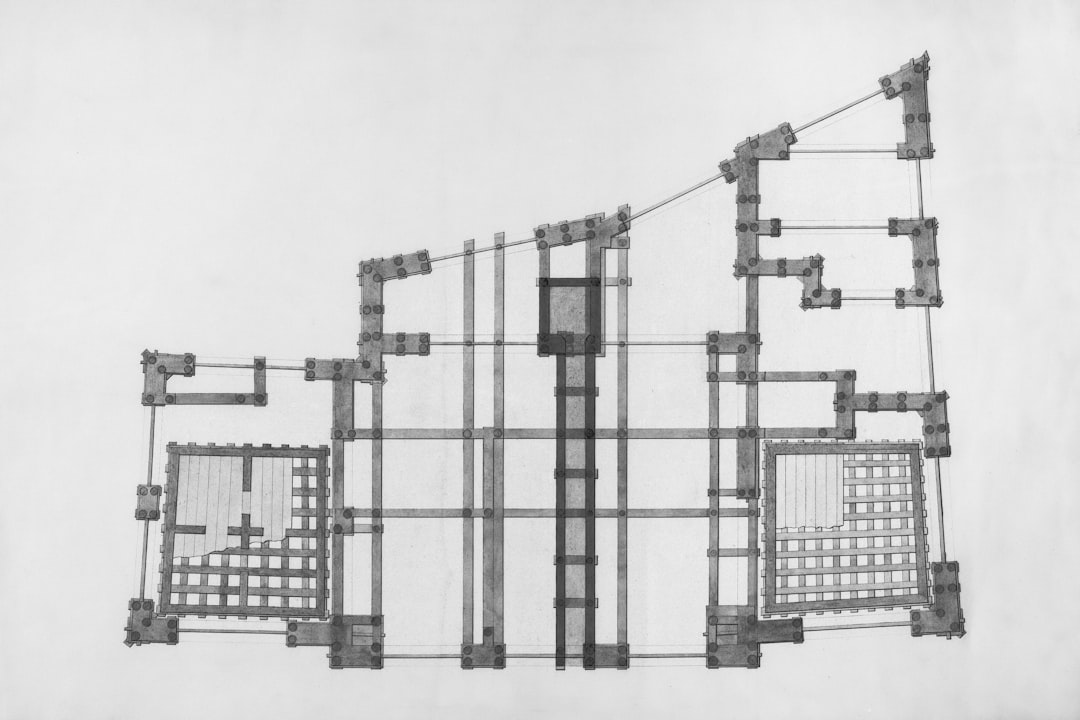
Last month, I built a complete microservice in a single afternoon. Not a prototype. Not a proof-of-concept. A production-grade service with authentication, rate limiting, PostgreSQL integration, full test coverage, OpenAPI docs, and a CI/CD pipeline. Containerized, deployed, monitoring configured. The kind of thing that would have taken my team two to three sprints eighteen months ago.
I didn’t write most of the code. I wrote the plan.
And I think that moment—sitting there watching Claude Code churn through my architecture doc, implementing exactly what I’d specified while I reviewed each module—was the exact moment I realized the industry has already changed. We just haven’t processed it yet.
The Numbers Don’t Lie (But They Do Confuse)
Let me lay out the landscape, because it’s genuinely contradictory right now:
Anthropic—the company behind Claude, valued at $380 billion as of this week—published a study showing that AI-assisted coding “doesn’t show significant efficiency gains” and may impair developers’ understanding of their own codebases. Meanwhile, Y Combinator reported that 25% of startups in its Winter 2025 batch had codebases that were 95% AI-generated. Indian IT stocks lost $50 billion in market cap in February 2026 alone on fears that AI is replacing outsourced development. GPT-5.3 Codex just launched. Gemini 3 Deep Think can reason through multi-file architectural changes.
How do you reconcile “no efficiency gains” with “$50 billion in market value evaporating because AI is too efficient”?
The answer is embarrassingly simple: the tool isn’t the bottleneck. The plan is.
Key insight: AI doesn’t make bad plans faster. It makes good plans executable at near-zero marginal cost. The developers who aren’t seeing gains are the ones prompting without planning. The ones seeing 10x gains are the ones who spend 80% of their time on architecture, specs, and constraints—and 20% on execution.
The Death of Implementation Cost
I want to be precise about what’s happening, because the hype cycle makes everyone either a zealot or a denier. Here’s what I’m actually observing in my consulting work:
The cost of translating a clear specification into working code is approaching zero.
Not the cost of software. Not the cost of good software. The cost of the implementation step—the part where you take a well-defined plan and turn it into lines of code that compile and pass tests.
This is a critical distinction. Building software involves roughly five layers:
- Understanding the problem — What are we actually solving? For whom? What are the constraints?
- Designing the solution — Architecture, data models, API contracts, security boundaries, failure modes
- Implementing the code — Translating the design into working software
- Validating correctness — Testing, security review, performance profiling
- Operating in production — Deployment, monitoring, incident response, iteration
AI has made layer 3 nearly free. It has made modest improvements to layers 4 and 5. It has done almost nothing for layers 1 and 2.
And that’s the punchline: layers 1 and 2 are where the actual value lives. They always were. We just used to pretend that “senior engineer” meant “person who writes code faster.” It never did. It meant “person who knows what to build and how to structure it.”
Welcome to the Plan-Driven World
Here’s what my workflow looks like now, and I’m seeing similar patterns emerge across every competent team I work with:
Phase 1: The Specification (60-70% of total time)
Before I write a single prompt, I write a plan. Not a Jira ticket with three bullet points. A real specification:
## Service: Rate Limiter
### Purpose
Protect downstream APIs from abuse while allowing legitimate burst traffic.

### Architecture Decisions
- Token bucket algorithm (not sliding window — we need burst tolerance)
- Redis-backed (shared state across pods)
- Per-user AND per-endpoint limits
- Graceful degradation: if Redis is down, allow traffic (fail-open)
  with local in-memory fallback

### Security Requirements
- No rate limit info in error responses (prevents enumeration)
- Admin override via signed JWT (not API key)
- Audit log for all limit changes

### API Contract
POST /api/v1/check-limit
  Request: { "user_id": string, "endpoint": string, "weight": int }
  Response: { "allowed": bool, "remaining": int, "reset_at": ISO8601 }

### Failure Modes
1. Redis connection lost → fall back to local cache, alert ops
2. Clock skew between pods → use Redis TIME, not local clock
3. Memory pressure → evict oldest buckets first (LRU)

### Non-Requirements
- We do NOT need distributed rate limiting across regions (yet)
- We do NOT need real-time dashboard (batch analytics is fine)
- We do NOT need webhook notifications on limit breach
That spec took me 45 minutes. Notice what it includes: architecture decisions with reasoning, security requirements, failure modes, and explicitly stated non-requirements. The non-requirements are just as important—they prevent the AI from over-engineering things you don’t need.
Phase 2: AI Implementation (10-15% of total time)
I feed the spec to Claude Code. Within minutes, I have a working implementation. Not perfect—but structurally correct. The architecture matches. The API contract matches. The failure modes are handled.
Phase 3: Review, Harden, Ship (20-25% of total time)
This is where my 12 years of experience actually matter. I review every security boundary. I stress-test the failure modes. I look for the things AI consistently gets wrong—auth edge cases, CORS configurations, input validation. I add the monitoring that the AI forgot about because monitoring isn’t in most training data.
Security note: The review phase is non-negotiable. I wrote extensively about why vibe coding is a security nightmare. The plan-driven approach works precisely because the plan includes security requirements that the AI must follow. Without the plan, AI defaults to insecure patterns. With the plan, you can verify compliance.
What This Means for Companies
The implications are enormous, and most organizations are still thinking about this wrong.
Internal Development Cost Is Collapsing
Consider the economics. A mid-level engineer costs a company $150-250K/year fully loaded. A team of five ships maybe 4-6 features per quarter. That’s roughly $40-60K per feature, if you’re generous with the accounting.
Now consider: a senior architect with AI tools can ship the same feature set in a fraction of the time. Not because the AI is magic—but because the implementation step, which used to consume 60-70% of engineering time, is now nearly instant. The architect’s time goes into planning, reviewing, and operating.
I’m watching this play out in real time. Companies that used to need 15-person engineering teams are running the same workload with 5. Not because 10 people got fired (though some did), but because a smaller team of more senior people can now execute faster with AI augmentation.
The Reddit post from an EM with 10+ years of experience captures this perfectly: his team adopted Claude Code, built shared context and skills repositories, and now generates PRs “at the level of an upper mid-level engineer in one shot.” They built a new set of services “in half the time they normally experience.”
The Outsourcing Apocalypse Is Real
Indian IT stocks losing $50 billion in a single month isn’t irrational fear—it’s rational repricing. If a US-based architect with Claude Code can produce the same output as a 10-person offshore team, the math simply doesn’t work for body shops anymore.
This isn’t hypothetical. I’ve seen three clients in the last six months cancel offshore development contracts. Not reduce—cancel. The internal team, augmented with AI, was delivering faster with higher quality. The coordination overhead of managing remote teams now exceeds the cost savings.
The uncomfortable truth: The “10x engineer” used to be a myth that Silicon Valley told itself. With AI, it’s becoming real—but not in the way anyone expected. The 10x engineer isn’t someone who types faster. They’re someone who writes better plans, understands systems more deeply, and reviews more carefully. The AI handles the typing.
The Skills That Matter Have Shifted
Here’s what I’m telling every junior developer who asks me for career advice in 2026:
Stop optimizing for code output. Start optimizing for architectural thinking.
The skills that are now 10x more valuable:
- System design — How do components interact? What are the boundaries? Where are the failure modes?
- Threat modeling — Security isn’t optional. AI won’t do it for you.
- Requirements engineering — The ability to turn a vague business need into a precise specification is now the most leveraged skill in engineering
- Code review at depth — Not “looks good to me.” Deep review that catches semantic bugs, security flaws, and architectural drift
- Operational awareness — Understanding how software behaves in production, not just in a test suite
The skills that are rapidly commoditizing:
- Syntax fluency in any single language
- Memorizing API surfaces
- Writing boilerplate (CRUD, forms, API handlers)
- Basic debugging (AI is actually good at this now)
- Writing unit tests for existing code
The Paradox: Why Anthropic’s Study Is Both Right and Wrong
Anthropic’s study found no significant speedup from AI-assisted coding. The experienced developers on Reddit were furious—it seemed to contradict their lived experience. But here’s the thing: both sides are right.
The study measured what happens when you give developers AI tools and tell them to work normally. Of course there’s no speedup—you’re still doing the old workflow, just with a fancier autocomplete. It’s like giving someone a Formula 1 car and measuring their commute time. They’ll still hit the same traffic lights.
The teams seeing massive gains? They changed the workflow. They didn’t add AI to the existing process. They rebuilt the process around AI. Plans first. Specs first. Context engineering. Shared skills repositories. Narrowly-focused tickets that AI can execute cleanly.
That EM on Reddit nailed it: “We’ve set about building a shared repo of standalone skills, as well as committing skills and always-on context for our production repositories.” That’s not vibe coding. That’s infrastructure for plan-driven development.
What the Next 18 Months Look Like
Here’s my prediction, and I’ll put a date on it so you can come back and laugh at me if I’m wrong:
By late 2027, the majority of production code at companies with fewer than 500 employees will be AI-generated from human-written specifications.
Not because AI will get dramatically better (though it will). But because the organizational practices will mature. Companies will develop internal specification standards, review processes, and tooling that makes plan-driven development the default workflow.
The winners won’t be the companies with the most engineers. They’ll be the companies with the best architects—people who can translate business problems into precise technical specifications that AI can execute flawlessly.
And ironically, this makes deep technical expertise more valuable, not less. You can’t write a good spec for a distributed system if you don’t understand consensus protocols. You can’t specify a secure auth flow if you don’t understand OAuth and PKCE. You can’t design a resilient architecture if you haven’t been paged at 3 AM when one went down.
The bottom line: The cost of building software is crashing toward zero. The cost of knowing what to build is going to infinity. We’re not in a “coding is dead” moment. We’re in a “planning is king” moment. The engineers who thrive will be the ones who learn to think at the spec level, not the syntax level.
Gear for the Plan-Driven Engineer
If you’re making the shift from implementation-focused to architecture-focused work, here’s what I actually use daily:
- 📘 Designing Data-Intensive Applications — Kleppmann’s masterpiece. If you can only read one book on distributed systems architecture, make it this one. Essential for writing specs that actually cover failure modes. ($35-45)
- 📘 The Pragmatic Programmer — Timeless wisdom on thinking at the system level, not the code level. More relevant now than ever. ($35-50)
- 📘 Threat Modeling: Designing for Security — Every spec you write should include security requirements. This book teaches you how to think about threats systematically. ($35-45)
- ⌨️ Keychron Q1 Max Mechanical Keyboard — You’ll be writing a lot more prose (specs, docs, architecture decisions). Might as well enjoy the typing. ($199-220)
Key Takeaways
- Implementation cost is approaching zero — the cost of converting a clear spec into working code is collapsing, but the cost of knowing what to build isn’t
- Planning is the new coding — teams seeing 10x gains spend 60-70% of time on specs and architecture, not prompting
- The outsourcing model is breaking — one senior architect + AI can outproduce a 10-person offshore team
- Deep expertise is MORE valuable — you can’t write a good spec if you don’t understand the domain deeply
- The workflow must change — adding AI to your existing process gets you nothing; rebuilding the process around AI gets you everything
The engineers who survive this transition won’t be the ones who learn to prompt better. They’ll be the ones who learn to think better. To plan better. To specify what they want with the precision of someone who’s been burned by production failures enough times to know what “done” actually means.
The vibes are over. The plans are all that’s left.
Are you seeing the same shift in your organization? I’m curious how different companies are adapting—or failing to adapt. Email [email protected]
Some links in this article are affiliate links. If you buy something through these links, I may earn a small commission at no extra cost to you. I only recommend products I actually use or have thoroughly researched.
📊 Free AI Market Intelligence
Join Alpha Signal — AI-powered market research delivered daily. Narrative detection, geopolitical risk scoring, sector rotation analysis.
Pro with stock conviction scores: $5/mo